


Eye catching thumbnails are one of the biggest secrets behind YouTube success. People scroll fast, they see dozens of videos at once, and they will usually click the one that grabs their attention first.
The problem is that most creators are not designers. You might not know what style works best and you may not want to pose for the camera. Editing a thumbnail from scratch in a design tool can feel slow and painful. You need to think about colors, fonts, contrast, and layout.
That is a lot of creative work when all you really want to do is upload your video.
This is why many channels use random frames from the video or very basic text on a colored background. These thumbnails do not stand out. They look similar to everything else and viewers have no reason to click.
Why Makes a Good YouTube Thumbnail
Look at the most successful creators today. Their thumbnails nearly always show a clear face with a strong expression. Surprise, shock, joy, fear, confusion, curiosity. These emotions jump off the screen and speak to the viewer right away.
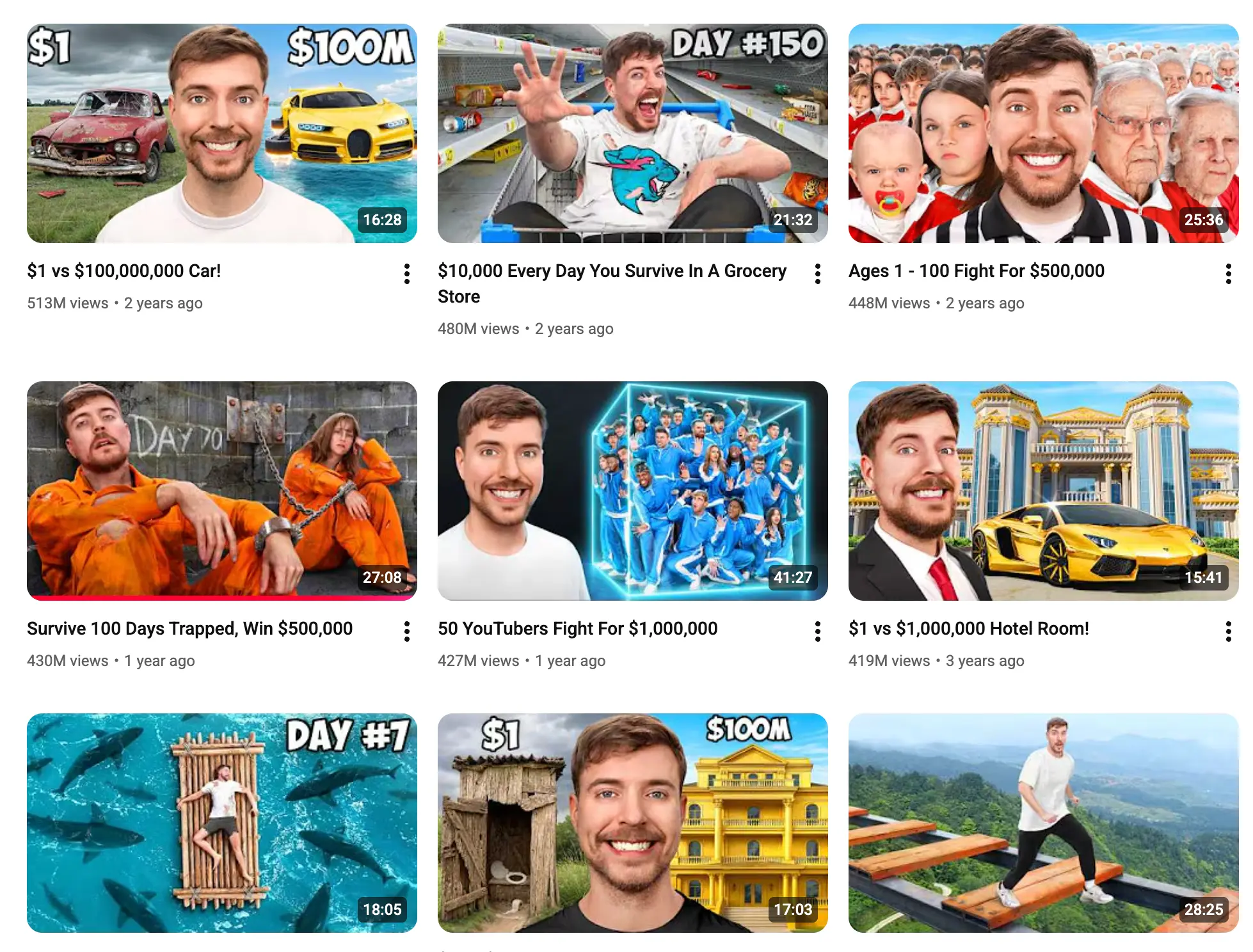
Faces work because people connect with people. A clear face makes the thumbnail feel personal. It makes the viewer feel that a real person is talking to them. A strong expression also tells a story. You can almost guess the mood of the video just by looking at the creator.

A good thumbnail usually combines three elements.
- A face with clear emotion.
- A short readable text that promises a result or shows the main topic.
- A simple background that supports the message.
When you put these together in a clear layout, you get a thumbnail that is easy to understand and hard to ignore.
The challenge is how to create this kind of thumbnail quickly without any design skills. That is where templates and AI come in.
How to Create Eye-Catching Thumbnails Quickly
The simplest and fastest way to create a professional YouTube thumbnail is to start from an existing template that worked for other creators.
A template already has the right layout, font sizes, color balance, and structure. You do not need to guess what works. You start from what already works on real channels.
Instead of staring at a blank canvas, you begin with a proven design. Then you only need to adapt it to your video. Swap the face. Adjust the text. Make small changes. You get a ready to use thumbnail in minutes.
Follow these steps to create stunning YouTube Thumbnails with AI in seconds:
1. Choose Your AI Tool
In this example, I will be using our YouTube Thumbnail Generator which is configured and pre-trained on thumbnails that gone viral and are proven to work. You can follow a similar workflow using tools like Canva or Adobe Express.
First go to the Reliablesoft YouTube Thumbnail Generator page and sign up for a free account.
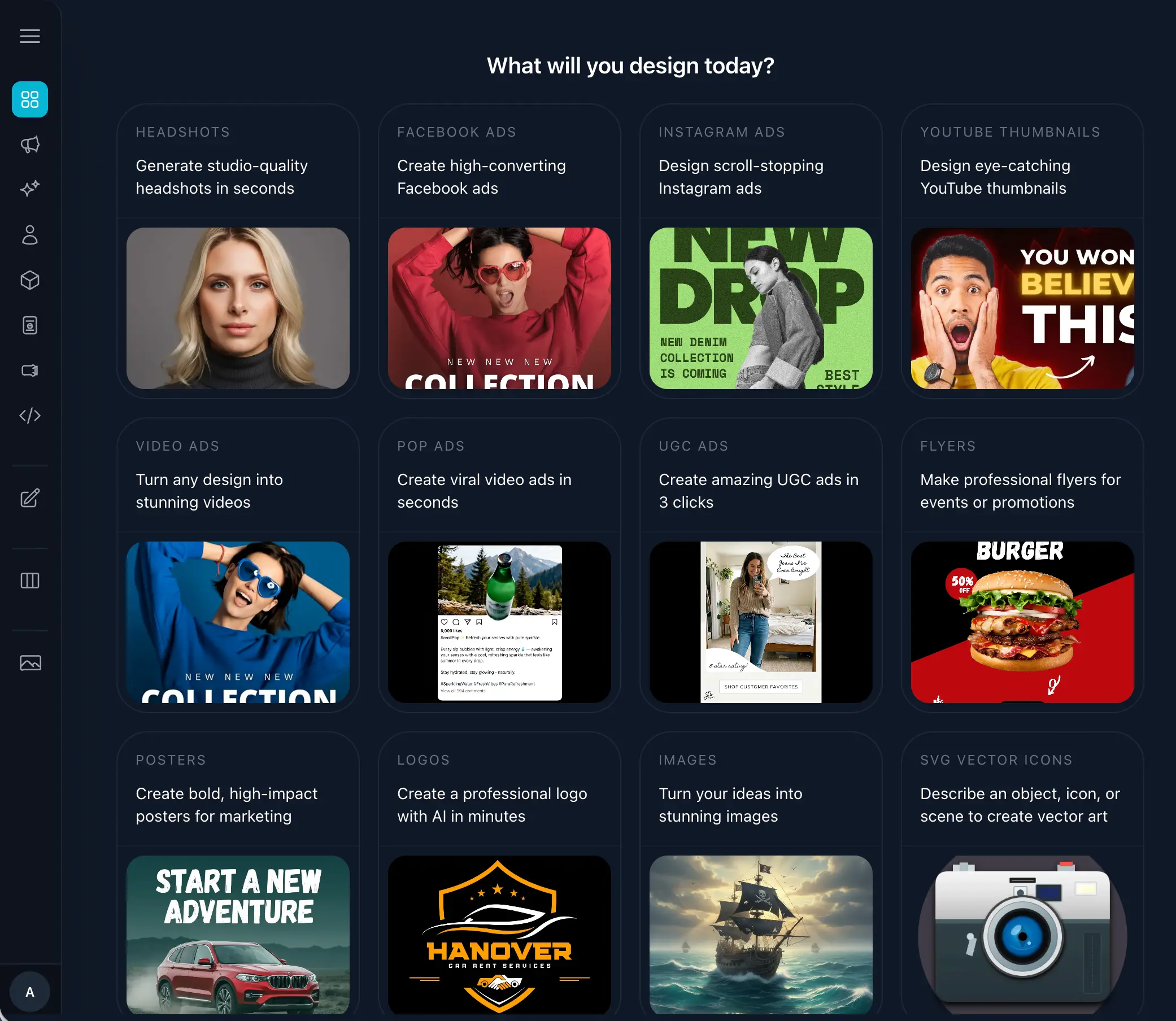
Then select 'YouTube Thumbnails' from the menu.
2. Select Template
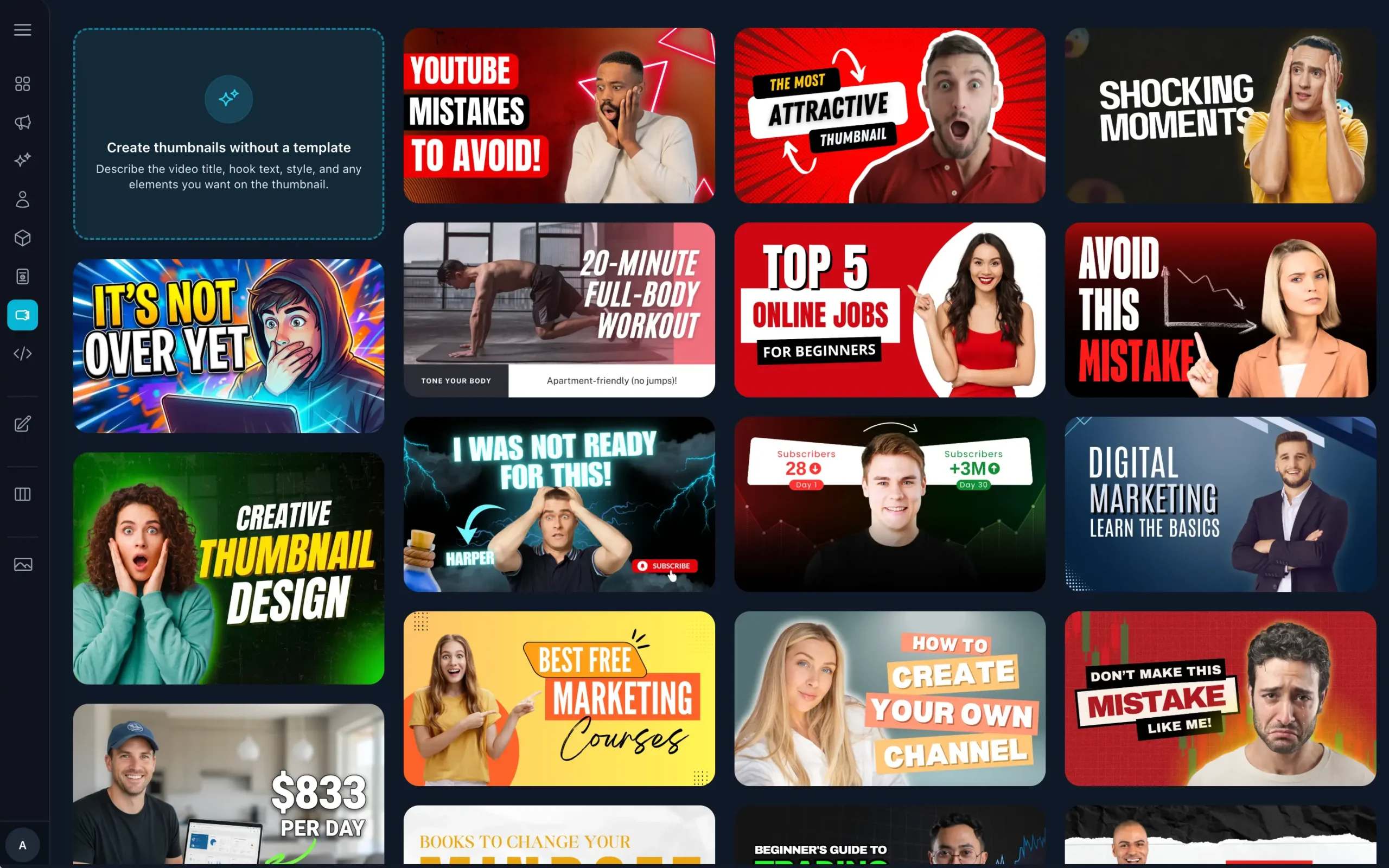
You will see a gallery of ready made templates. These are based on formats that already perform well on YouTube. Some are bold and colorful. Others are more clean and minimal.
Start by selecting a template that matches the style of your video. If you are doing tutorials, choose something simple with clear text. For reaction or storytime videos, pick a more dramatic template with a facial expression. Do not overthink it. You can always change later.
3. Upload Your Image
Next you add your image. Upload a front facing photo of yourself. A simple selfie is enough. You do not need a studio or expensive camera and you don't need to show any expression.
Once your photo is uploaded, the generator gives you several smart options for how to use your photo and the template.
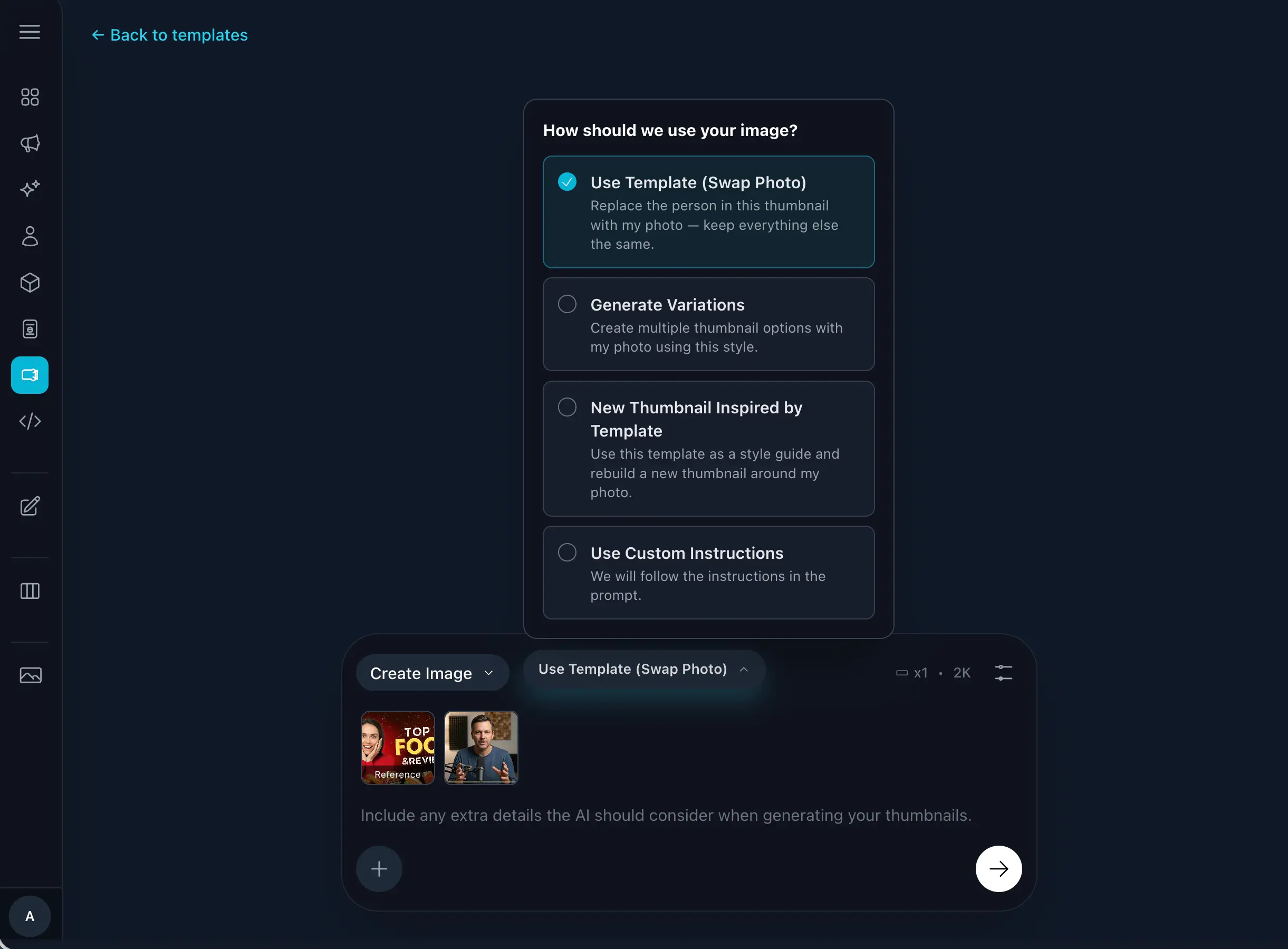
Use Template (Swap Photo) - This option replaces the person in the template with your photo and keeps everything else the same. The colors, fonts, and layout stay as they are. This is perfect when you already like the design and just want to drop yourself into it.
After generating the first draft, you can easily change the text using text prompts. Our AI will keep your existing style and design and only change what's instructed in the prompt.
Generate Variations - Here the tool creates multiple thumbnail options with your photo using the style of the template. You see different layouts, text placements, and small visual changes. This is great if you want to compare a few ideas and pick the one that feels strongest.
You can also combine this option with a custom prompt to get thumbnails that share the style of the template but with your own branding and messaging.
New Thumbnail Inspired by Template - This uses the template only as a style guide. The AI rebuilds a new thumbnail around your photo but keeps the same overall mood. For example similar colors and font style but a different arrangement. This is ideal when you like the vibe of a template but want a more unique result.
4. Refine Your Thumbnail with AI Prompts
Once you have a base thumbnail you like, you can refine it further using AI. This is where the tool becomes very powerful. Instead of manually dragging elements around, you simply tell the AI what you want to change.

- You can ask it to change colors. For example you can say ' Turn the background into bright orange and make the text black.'
- You can modify the style. For example 'Make this look more like a cinematic movie poster.'
- You can adjust the text. For example 'Replace the headline with Grow on YouTube Faster and add a small callout that says Free Guide.'
- You can even ask for more dramatic changes. For example you can request a stronger zoom on your face or a blur effect on the background. The AI handles the details for you. You stay in control of the idea. The tool takes care of the execution.
This removes the need to learn a design tool or spend time on tiny adjustments. You simply speak to the AI in normal language until the thumbnail feels right.
5. Download and Upload to YouTube
When you are happy with your thumbnail, you can download it as a JPG or PNG file. Both formats work well for YouTube. Save the file with a simple name that helps you remember what video it belongs to.
Then go to YouTube Studio and open the video you want to update. In the details section, you will see the thumbnail options. Click to upload your custom image and select the file you just created. Save your changes and you are done.
In a few minutes you went from no idea to a polished thumbnail that looks like it belongs on a big channel.
How to Create YouTube Thumbnails With AI Without Using a Template
Sometimes you already have assets you want to show. For example product photos, screenshots, logos, or scenes from your video. In that case, you can upload these assets into the YouTube Thumbnail generator and let AI suggest high converting thumbnail ideas for you.
You can instruct the AI to use your product image and your face together. You can ask it to highlight a key feature or result.
For example 'Use my product image on the left, my face on the right, and big text that says Double Your Traffic.'
The AI can combine your assets in different ways and show you several creative options. You can then refine the one you like most using text prompts as before. This workflow is perfect for marketing videos, tutorials, or review content. You keep control of the visuals while AI handles the heavy design work.
5 Quick tips For Click-Worthy Thumbnails
1. Focus on one clear message.
When viewers glance at your thumbnail, they should understand the main idea in one second. Avoid long sentences or too many elements. Use short punchy text that supports the image.
If the video is about growing a channel, text like More Views Faster is enough. The combination of the text and your facial expression should tell a simple story. Confused and busy thumbnails make people scroll away.
2. Make your face the main subject.
If you are on camera in your videos, your face should usually be the star of the thumbnail. Make sure your head and shoulders fill a big part of the frame. The eyes should be visible and sharp.
Add a clear expression that matches the emotion of the video. If something went wrong in the video, look shocked or disappointed. If you achieved something great, look proud or excited. People relate to human emotion far more than to text or icons alone.
3. Use strong contrast and readable text.
On mobile screens, thumbnails appear very small. Light text on a light background or dark text on a dark background will disappear.
Pick colors that stand apart from each other. For example bright text over a darker background.
Use large bold fonts with simple shapes. Avoid thin cursive fonts that are hard to read.
If you are unsure, reduce your thumbnail to a very small size and see if you can still read the words. If you cannot read them, your viewers will not either.
4. Keep the design consistent with your brand.
Over time, your viewers should be able to spot your videos at a glance. A simple way to do this is to keep some elements consistent. This could be a color scheme, a font choice, or a small logo in the corner.
You can also keep a similar layout while changing the text and expression for each video. Tools like the Reliablesoft AI Design Studio make this easy because you can reuse and adapt the same templates for many uploads. Consistent thumbnails help you look more professional and help viewers remember you.
5. Test ideas and learn from your analytics.
No one gets the perfect thumbnail every time. The goal is to keep learning. Use your YouTube Analytics to see which thumbnails have the highest click through rate.
Look for patterns:
- Do close up faces perform better than wide shots?
- Does red text outperform blue text?
- Do simple backgrounds perform better than busy ones?
Use these insights to guide your future choices in the generator. Over time, your thumbnails will become more effective and your channel will grow faster.
Conclusion
Creating great YouTube thumbnails no longer has to be stressful or time consuming. With AI powered tools and hign-converting templates, you can create thumbnails that look like they came from a professional designer in just a few minutes.
Start with a proven layout, add a simple selfie, tell the AI what you want, and you are ready to upload.
The more you practice this workflow, the easier it becomes. Soon, creating a thumbnail for each new video will feel like the fastest and most fun part of your upload process.