

Claude can't create images by itself, because Anthropic never gave it an image model. What it can do is use one: give Claude an API key for Google's Nano Banana or OpenAI's GPT Image, and it writes the prompt, calls the model and saves the photo in a folder on your computer.
That's why this setup is free in the way that matters. There's no new image subscription and no monthly credits that vanish. If you already pay for Claude, the only extra cost is the image itself, a few cents each, billed by Google or OpenAI only for what you make.
To show the whole process, I ran a small project for an imaginary coffee shop: a product photo, an edit, a real headshot moved into the shop and a poster with a price on it.
Can Claude Generate Images?
Not on its own. It has no image model inside it, unlike ChatGPT or Gemini.
But Claude is far from useless for visuals. It designs them in a different way: by writing code, mostly HTML, the language web pages are made of. Ask for an Instagram post, an infographic, a chart, a slide or a landing page, and Claude lays it out in code and can save the result as an image or a PDF.
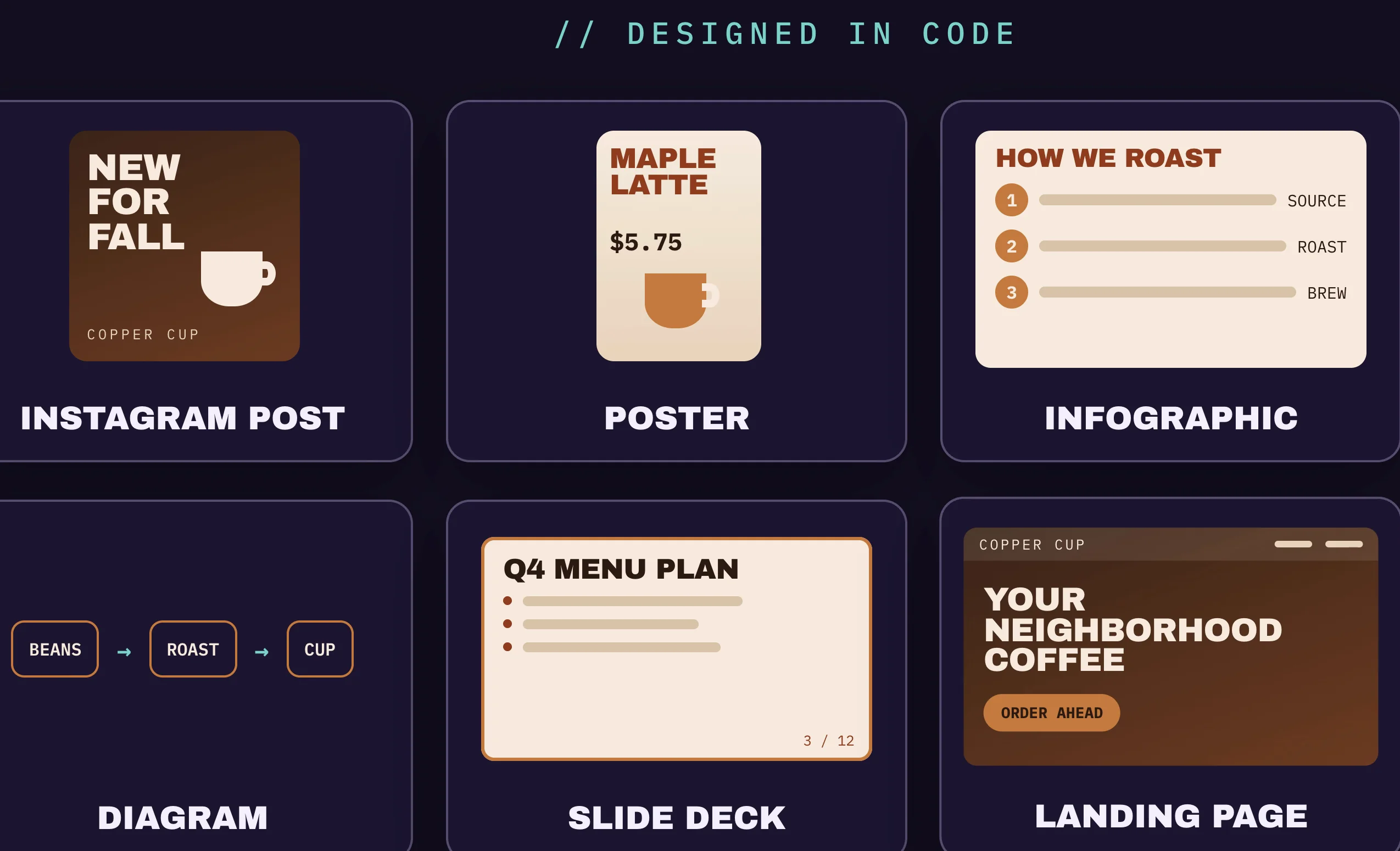
Designs made in code have three real strengths:

- The text is always correct. It's real text, so every letter is crisp and spelled the way you typed it.
- Your brand stays consistent. The same fonts and colors come back every time.
- Changes are instant. A new headline or price is a one-line edit, not a new image.
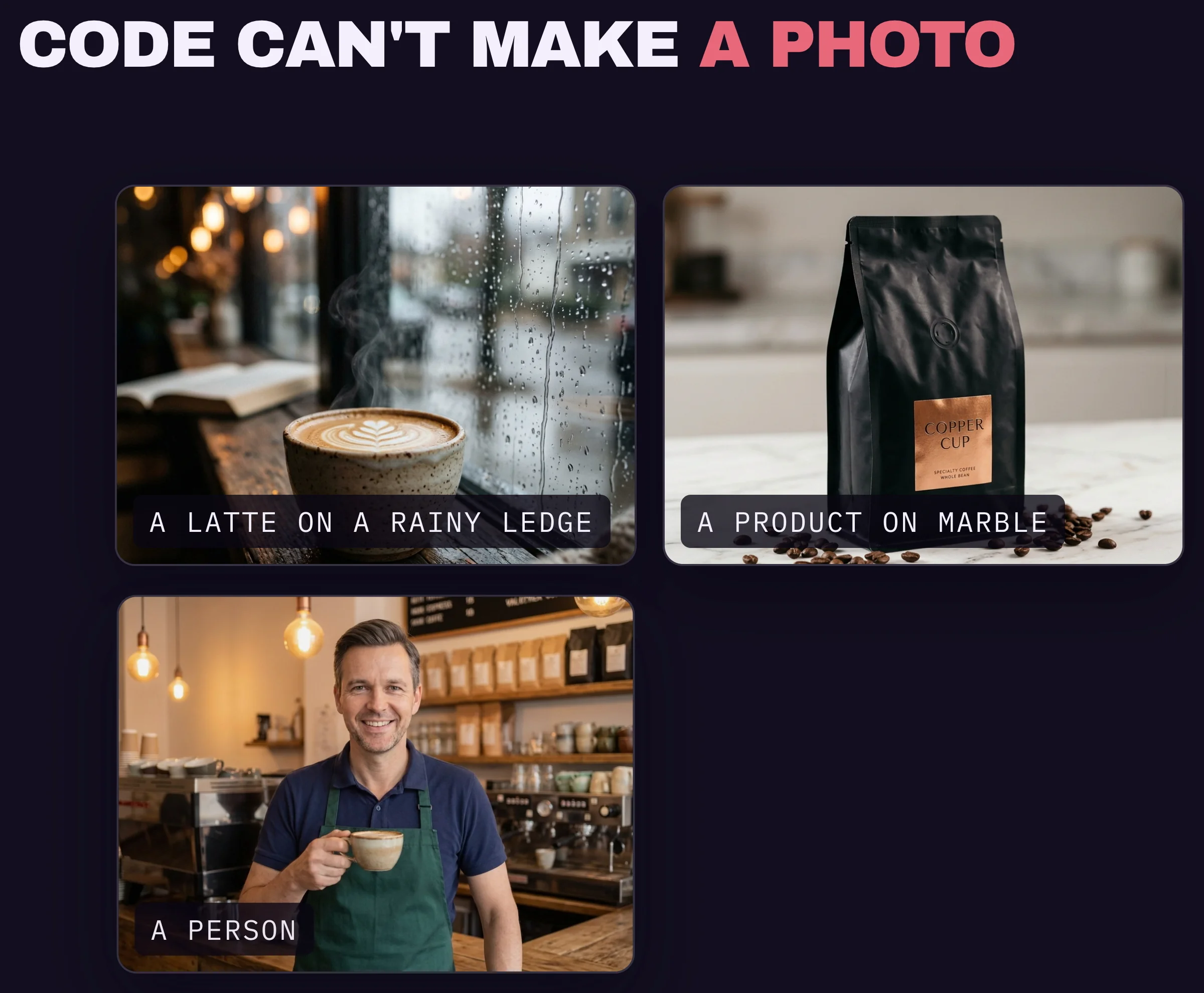
What code can't produce is anything that should look photographed or painted: a drink on a café table, a product on marble, a person, a watercolor. Those need an image model, and that's the part this tutorial adds to Claude.
A quick way to decide:
- Mostly words, shapes, charts or layout? Let Claude build it in code, at no extra cost.
- Should it look like a photo or an illustration? Use an image model.
- A photo with a headline on it? Generate the photo with an image model, then have Claude lay the words over it in code.
How to Generate Images in Claude: Step-by-Step
The setup is a one-time job of about 10 minutes: two API keys, one Claude environment and one prompt. After that, making an image takes a sentence and about 15 seconds.
Step 1: Get a Google (Gemini) API Key
An API key is a long secret string. Whoever holds it can call Google's image models and have the bill sent to your account.
- Open aistudio.google.com , log in with your Google account and accept the terms if it's your first visit.
- Choose Get API key. On the API Keys page, the Create API key button sits top right.
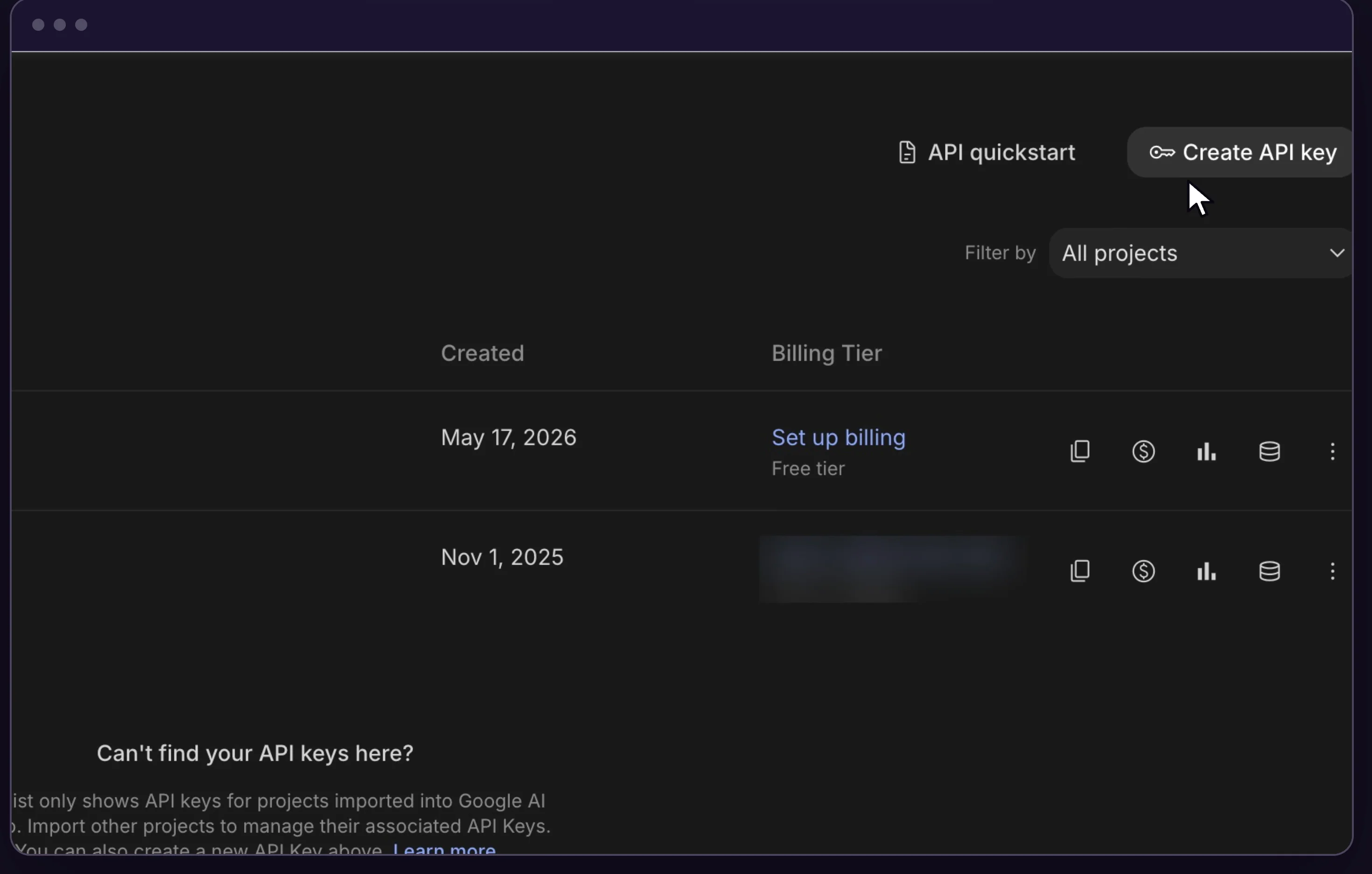
- Give the key a name you'll recognize, such as "Claude images", choose a project (the default one is fine) and click Create key.
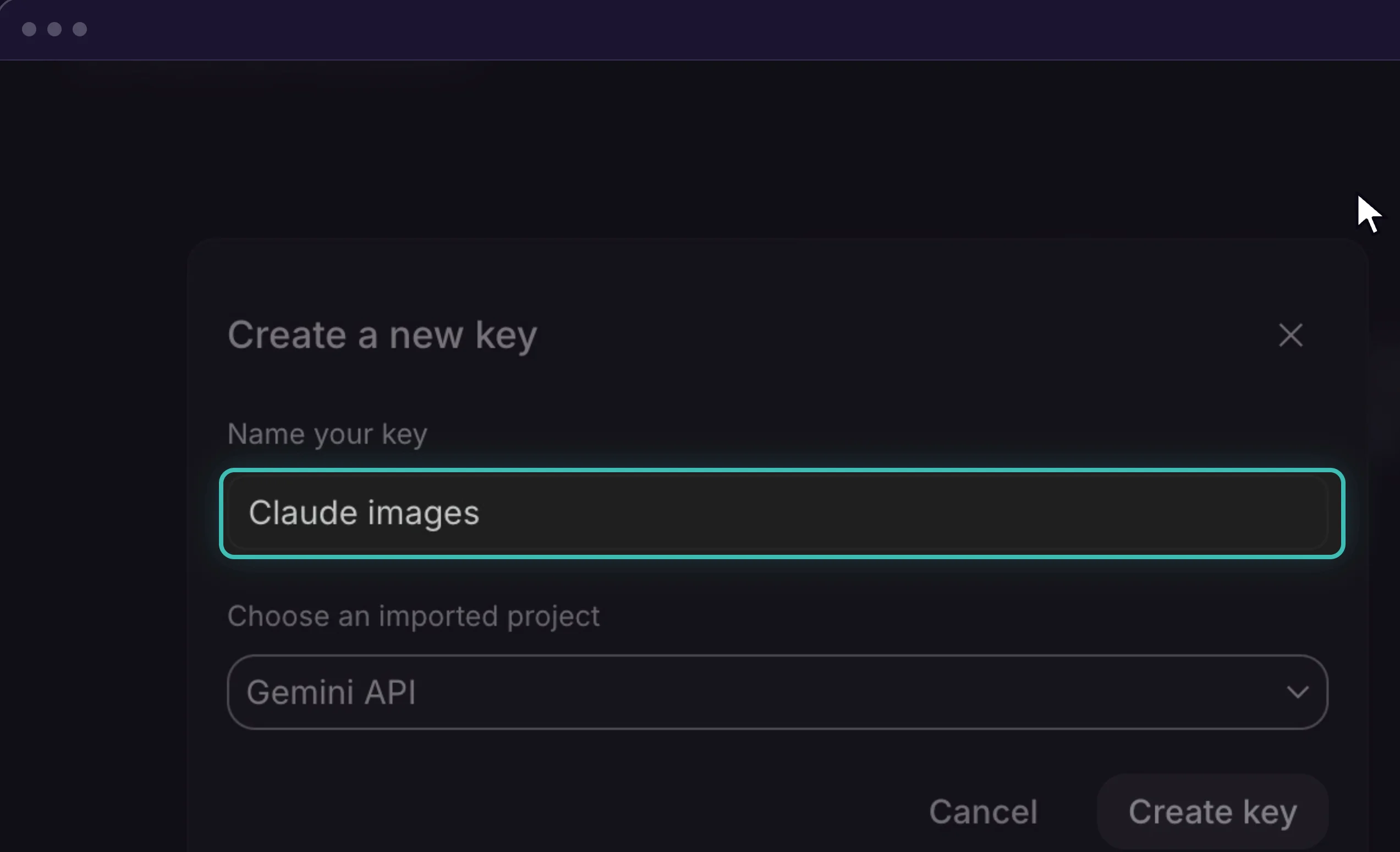
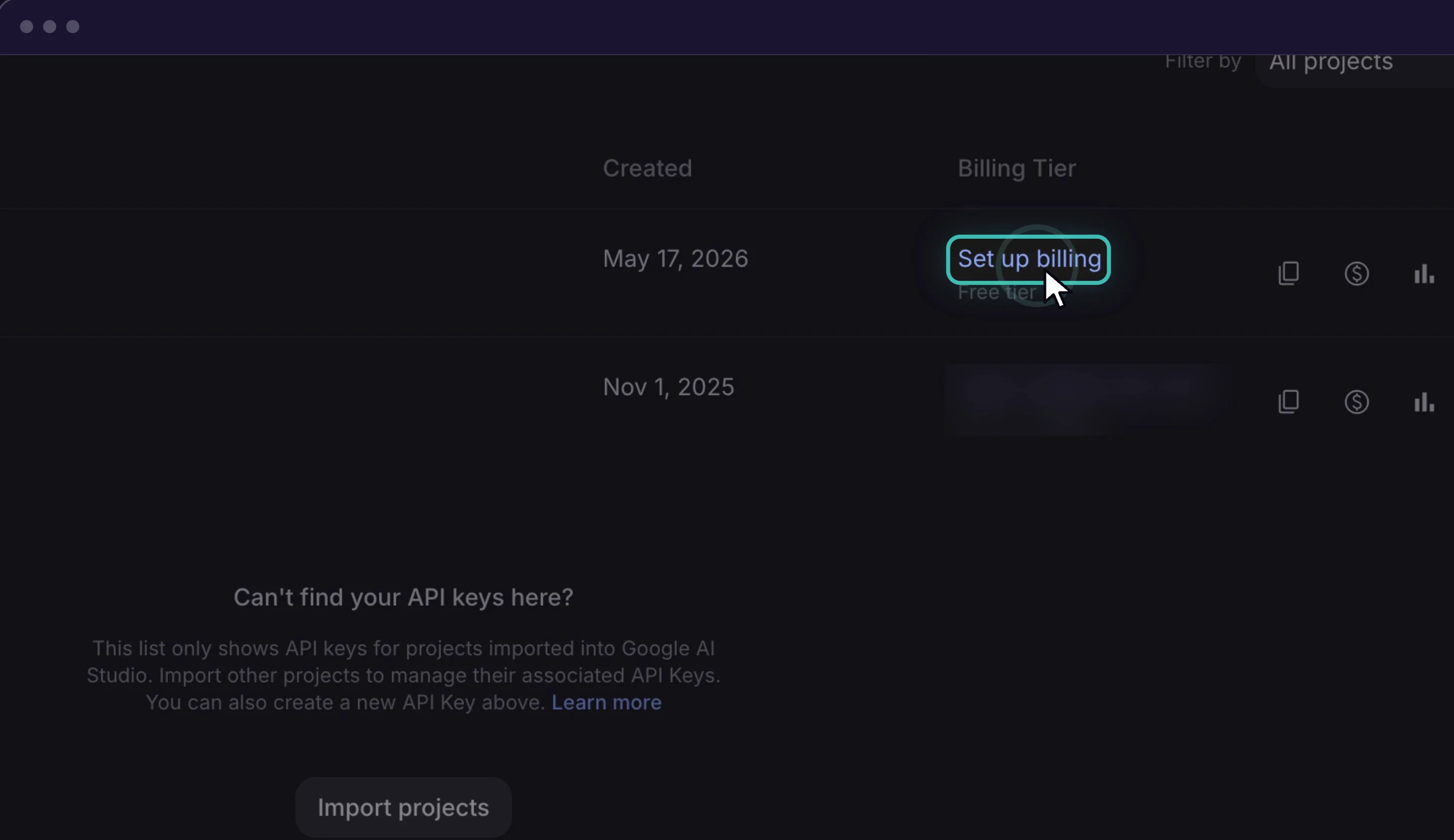
Now the step most people miss. A new key can't make images yet, because Google's image models aren't part of the free tier. You can see it in the Billing Tier column, which still reads Free tier.
- In that column, click Set up billing.
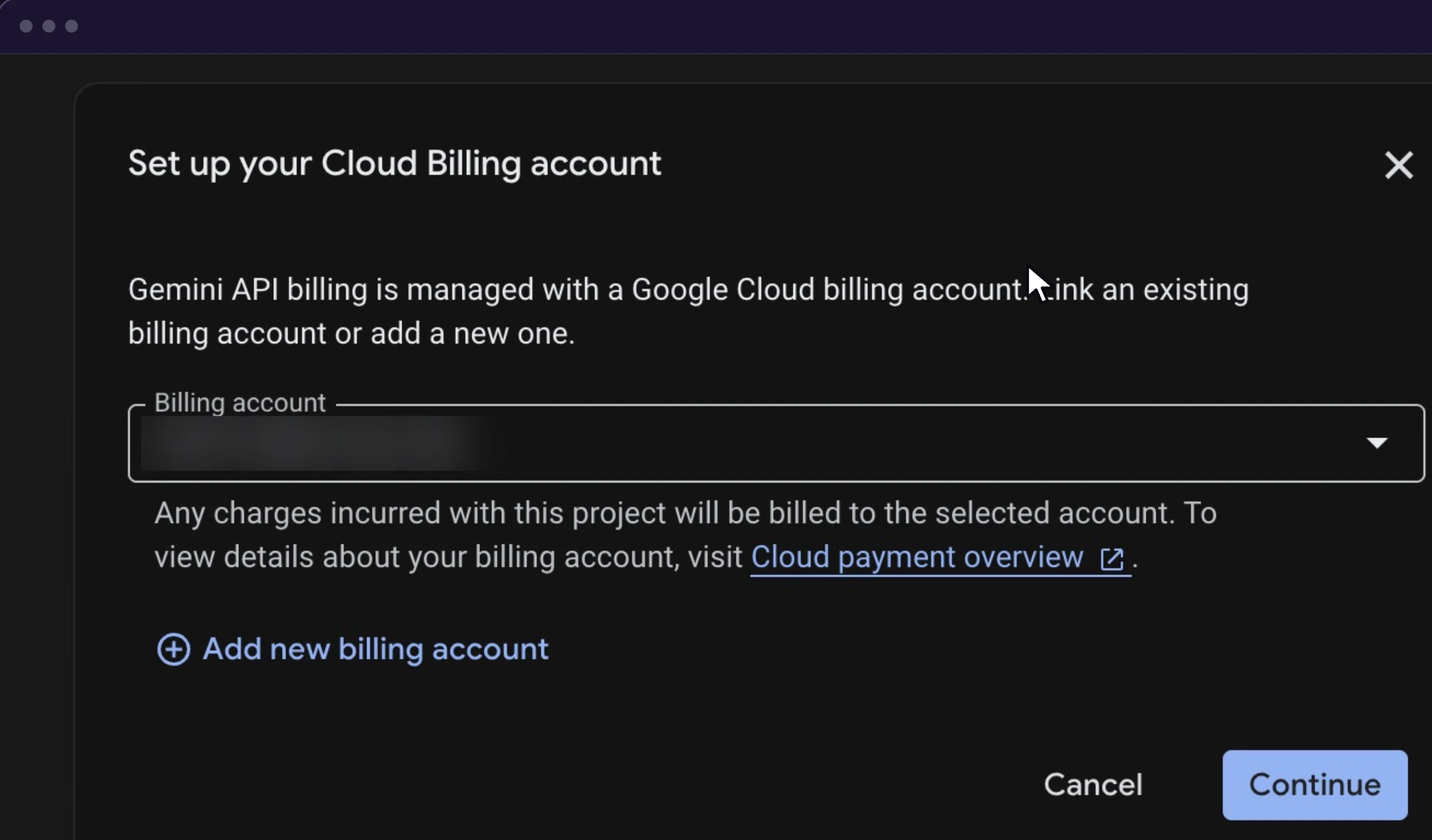
- Google charges image use to a Google Cloud billing account. Pick an existing one, or click Add new billing account and enter your card.
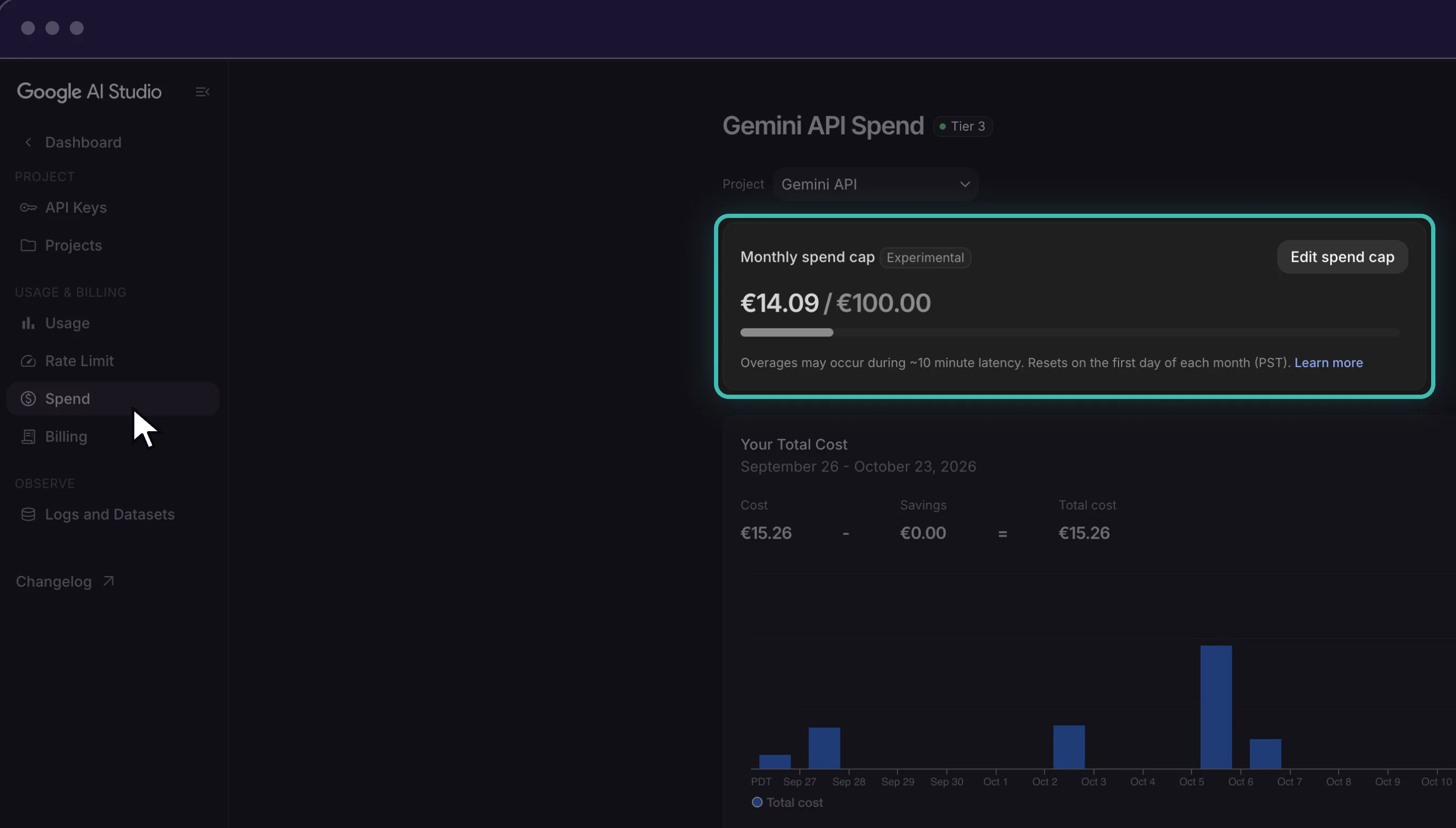
- Open Spend in the left menu and click Edit spend cap. Pick a monthly limit you're comfortable with, such as $10. Google labels the cap experimental and says spending can go slightly over it, so leave some room.
- Click your key to open its details and click Copy key. Paste it into a temporary note for now.
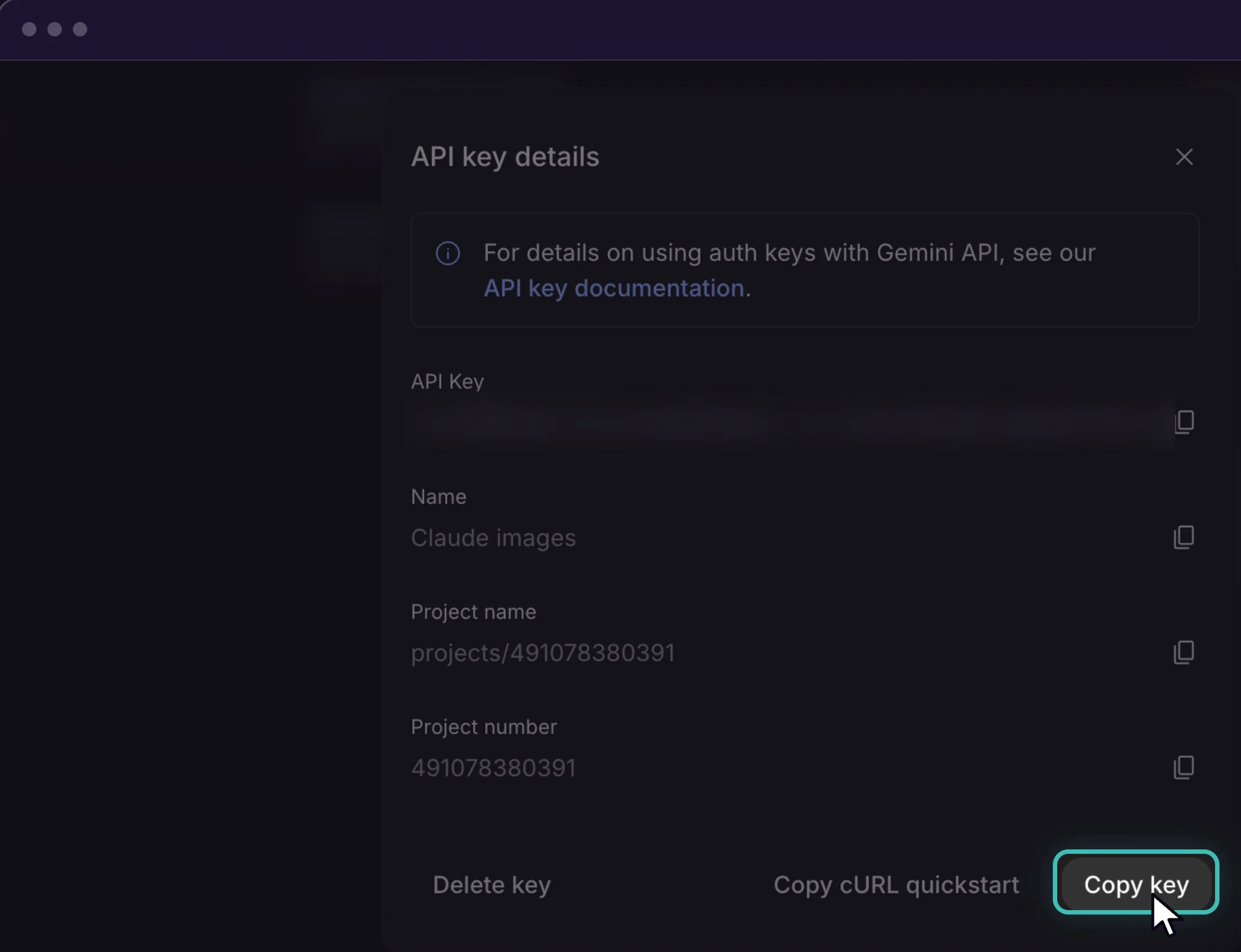
Treat the key like a password. Whoever has it can run up charges on your card, so keep it out of posts, emails and chats. If you think it has leaked, remove it from the API Keys page and generate a fresh one.
Step 2: Get an OpenAI API Key
The second key gives Claude access to GPT Image, which handles text inside pictures better than Nano Banana. OpenAI keeps its API billing apart from ChatGPT, so paying for ChatGPT Plus doesn't include it.
- Sign in at platform.openai.com with your OpenAI account.
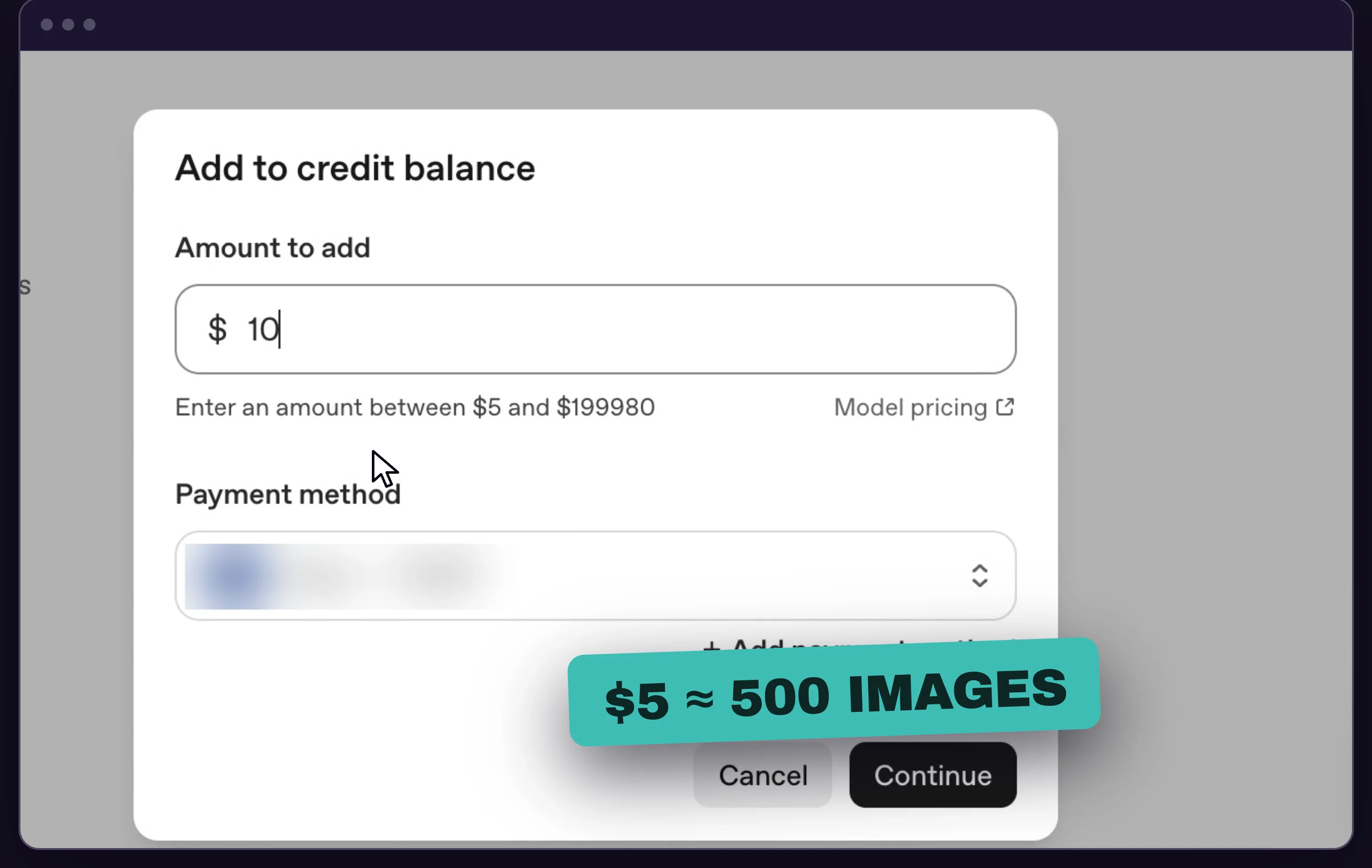
- Go to Settings, then Billing, and add credit. $5 is the minimum, and at medium quality it covers hundreds of images. Leave auto reload off, so spending simply stops when the credit runs out.
- Depending on the account, OpenAI may want a quick identity check (organization verification) before it unlocks the image models. If you see that request, finish it first.
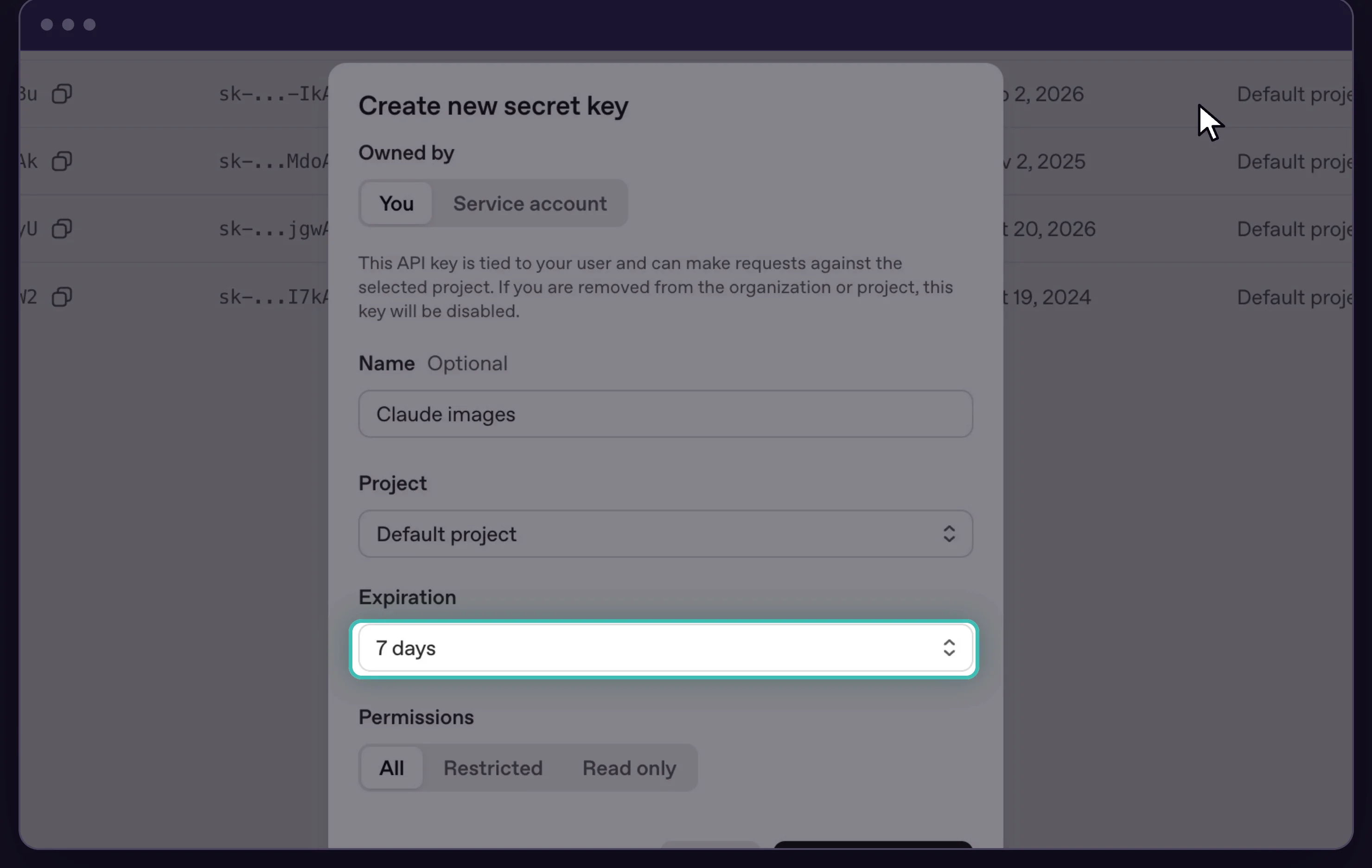
- Go to API keys in the sidebar and press Create new secret key. Name it "Claude images", choose the default project, pick an expiry date and click Create secret key.
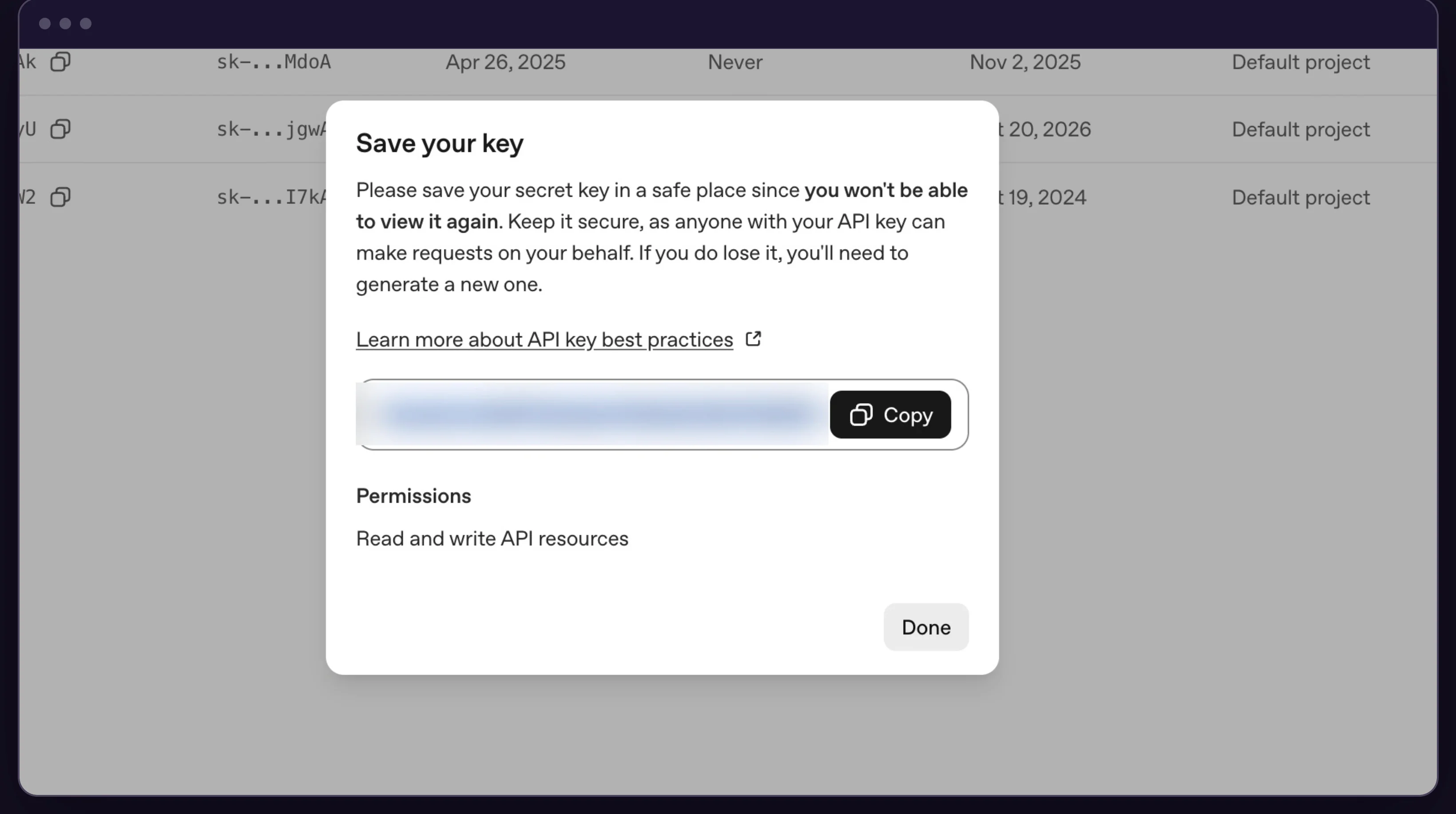
- Copy the key immediately and store it with the Google one. OpenAI displays it a single time, so if you lose it you'll have to revoke it and create another.
Step 3: Create an Image Studio Environment in Claude
Your keys now need a safe home inside Claude. In the Code tab, that home is an environment: a saved profile that points Claude at one folder and loads the settings you give it. Keys saved in an environment are stored encrypted on your computer and handed only to sessions started from it, so they stay out of your conversations.
- Make a new desktop folder named Image Studio. It's where all your pictures will land.
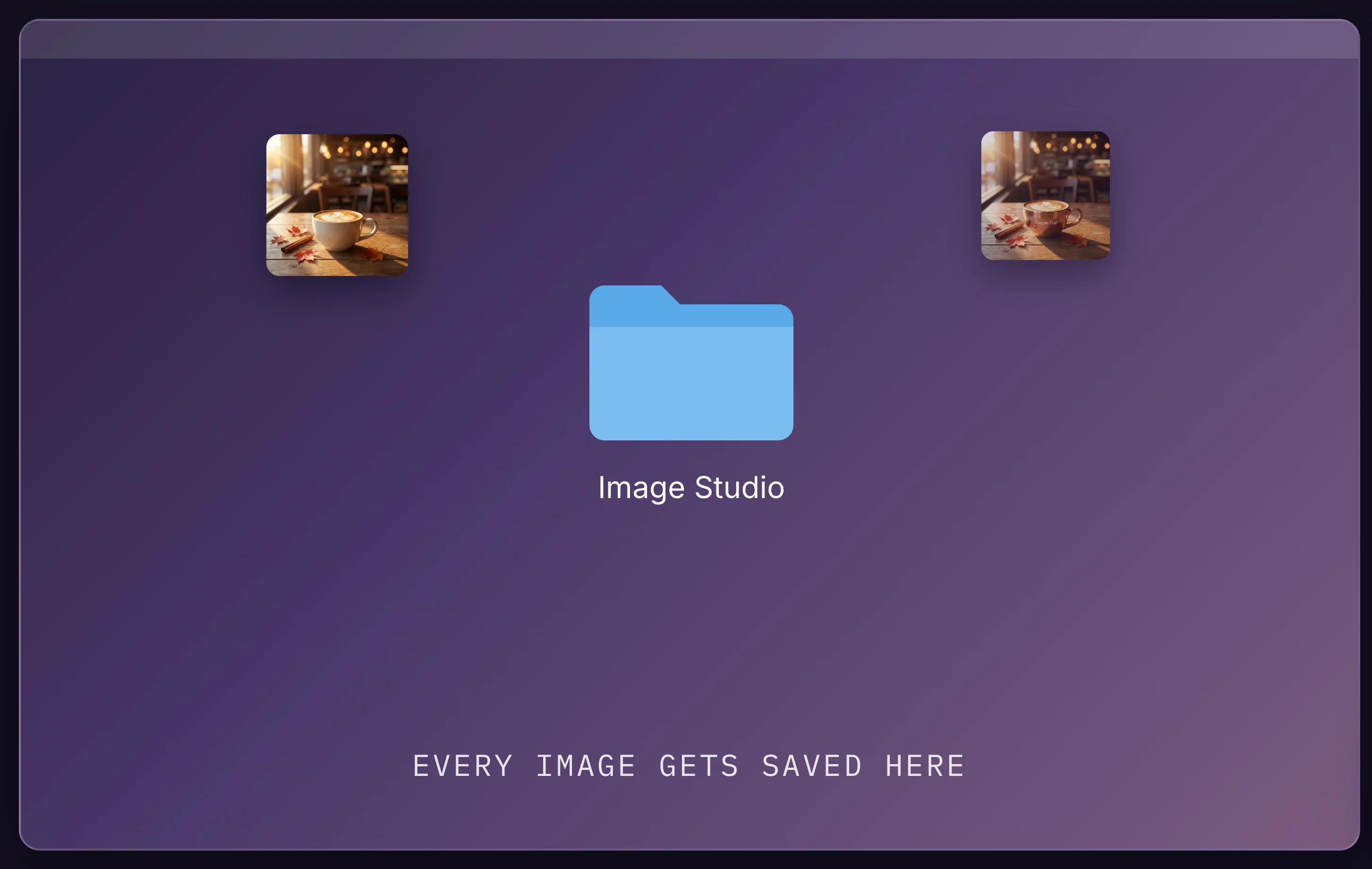
- Launch the Claude desktop app and switch to the Code tab.
- Under the prompt box there's an environment selector, normally showing This computer. Open it and choose New environment.
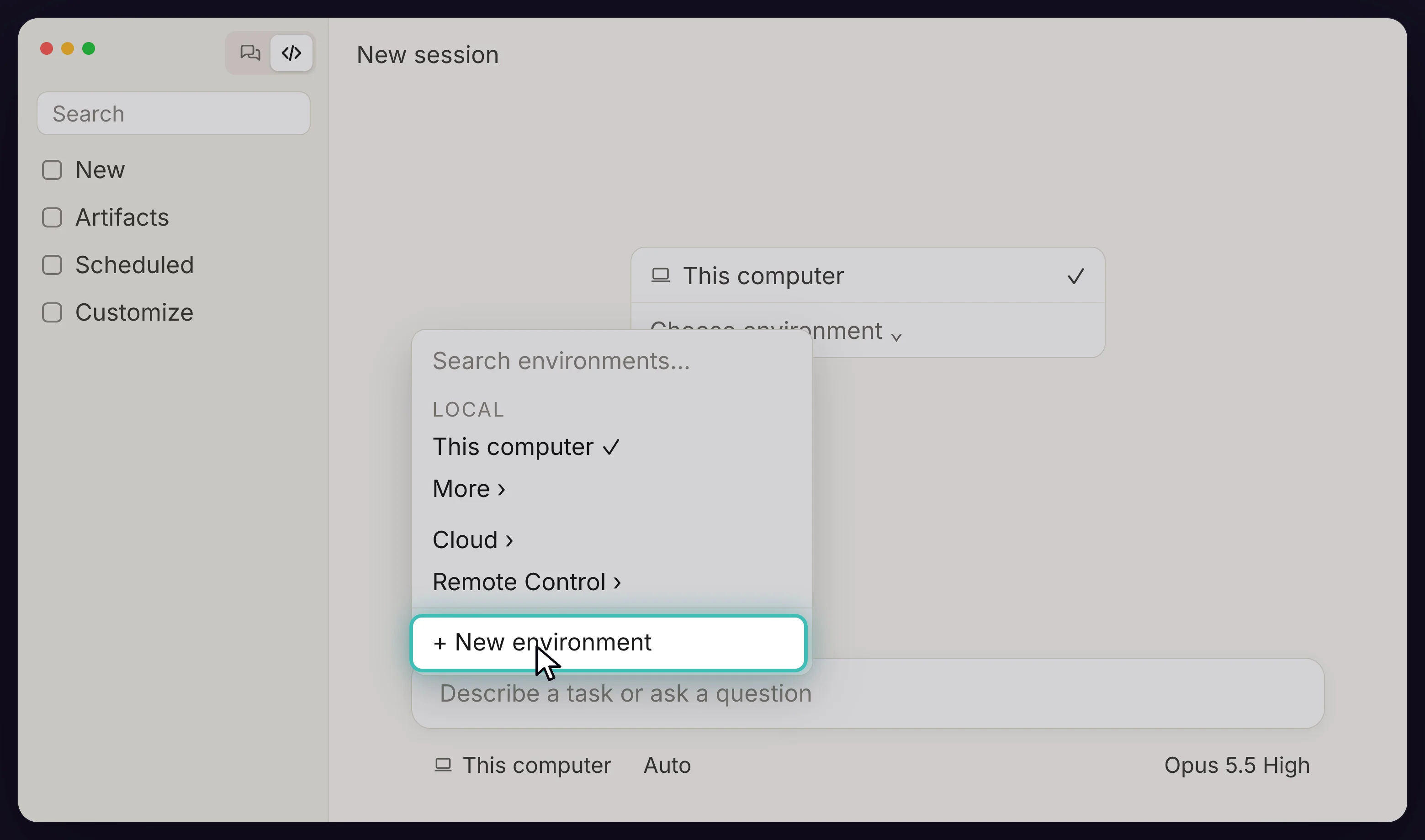
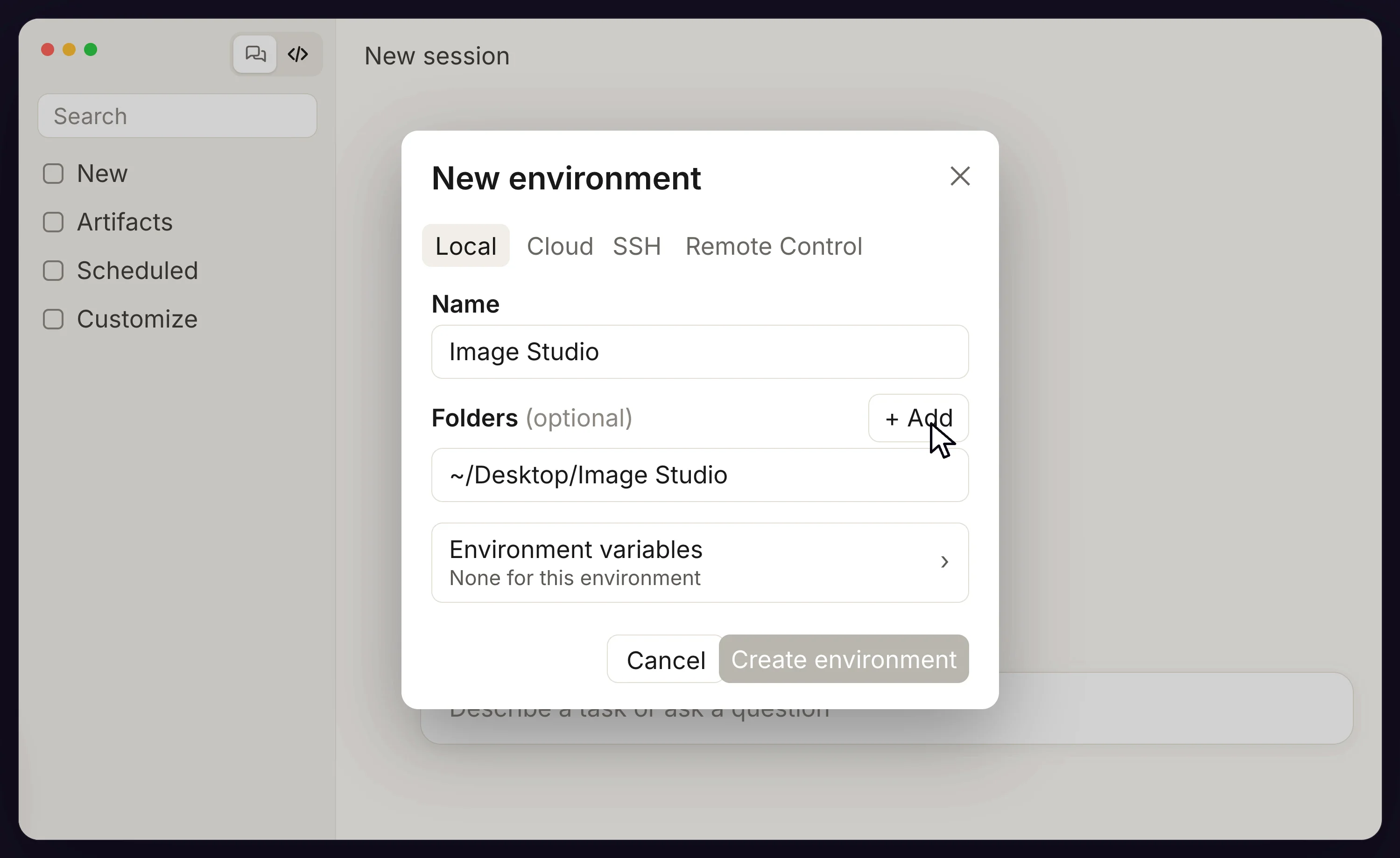
- On the Local tab, name it Image Studio, click Add next to Folders and select your Image Studio folder.
- Click Environment variables.
- Paste the two lines below, then swap each placeholder for the matching key. Keep the names exactly as shown, with no spaces around the equals sign and no quotes.
GEMINI_API_KEY=paste-your-google-key-here
OPENAI_API_KEY=paste-your-openai-key-here
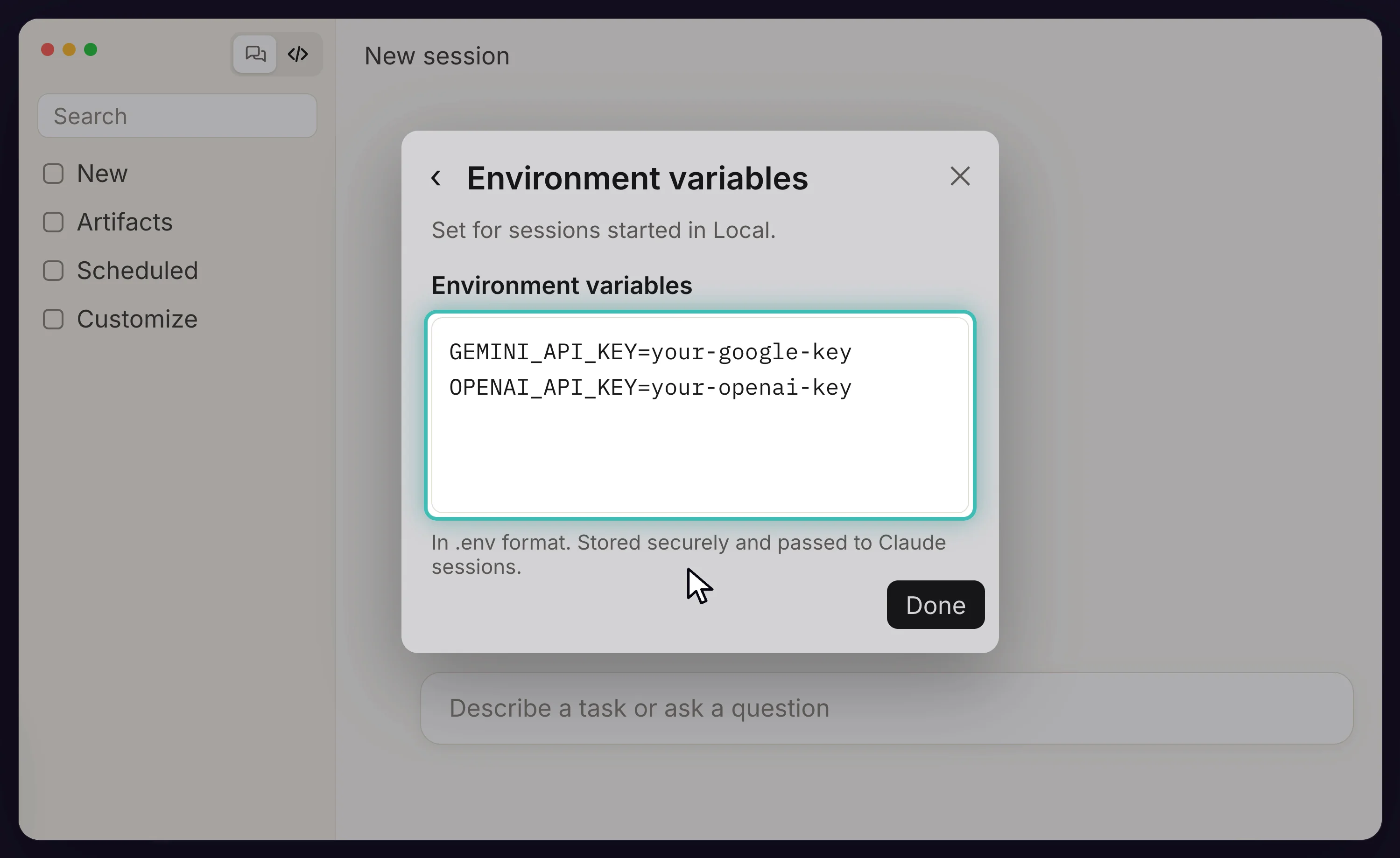
- Click Done, then Create environment. Delete the temporary note with your keys.
Step 4: Run the Setup Prompt
This is the only clever part, and you do it once. With one prompt, Claude writes a small image tool into your folder, documents how it works and tries out both keys.
- Click New session and make sure the environment menu says Image Studio.
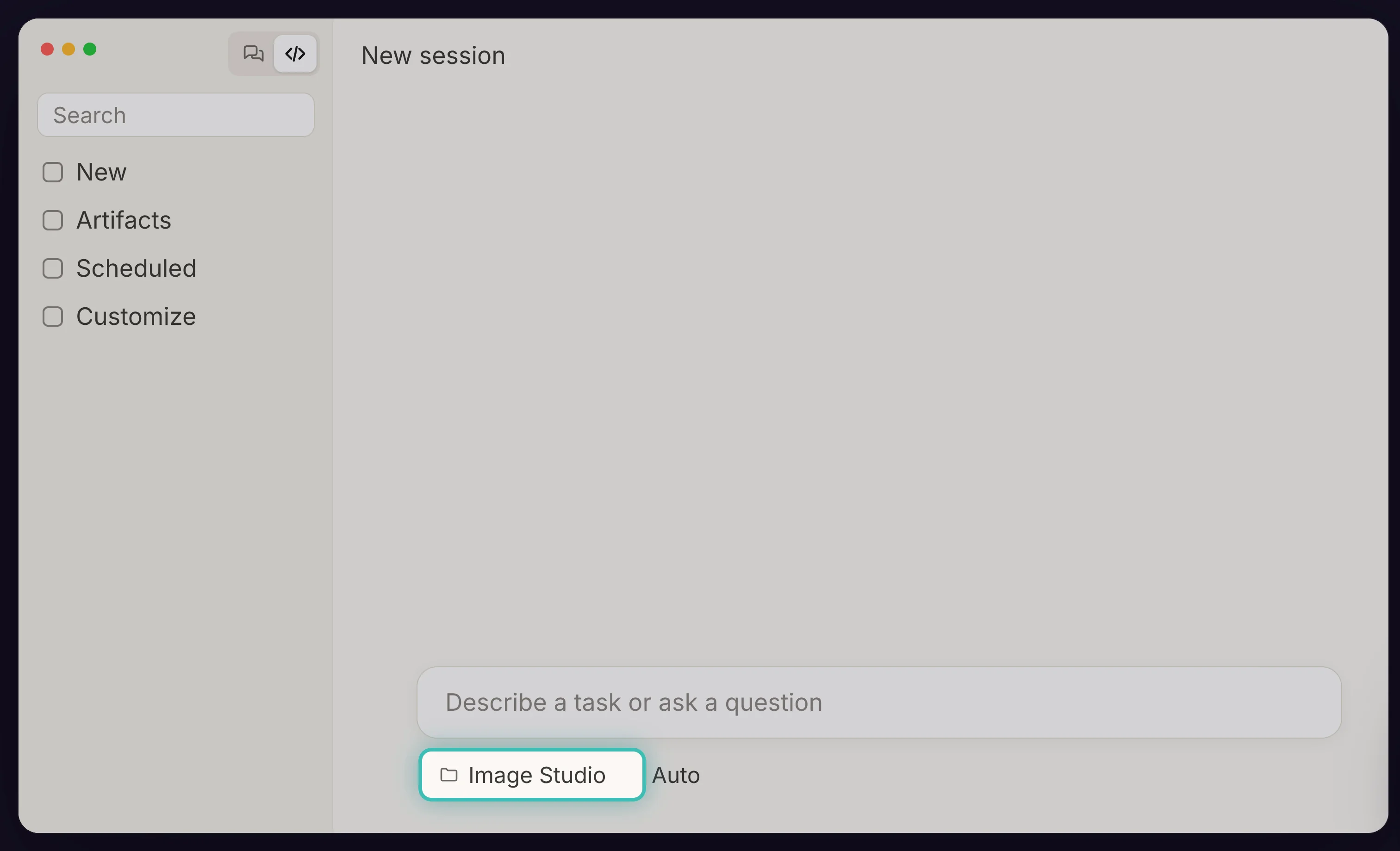
Only sessions started from Image Studio receive your keys. Make it a habit to pick it every time you want images, and you'll avoid most problems.
- Paste this prompt and press Enter:
Set up this folder as my image studio, so I can create and edit images just by asking.

My Google API key is saved in the GEMINI_API_KEY environment variable and my OpenAI API key is in OPENAI_API_KEY. Never print the keys, and never save them in a file.

1. Build a small image tool in this folder that can:
   - Create images with Google's Nano Banana Pro (the default), Google's Nano Banana 2.1 (when I ask for a cheaper or draft image), and OpenAI's GPT Image 2.5 (when I ask for GPT Image).
   - Edit images: take one or more existing images as references and change only what I describe.
   - Set the shape (square, landscape, portrait or any aspect ratio) and the size (1K, 2K or 4K).
   - Save every image in an "images" folder with a short descriptive file name, without ever overwriting an older image.
   - Keep a log in images/costs.csv with the date, file name, model, size and estimated cost of every image.

2. Write a CLAUDE.md file that explains how to use the tool, so every future chat in this folder knows what to do: when I describe an image, turn my description into a detailed prompt, run the tool, and show me the result. When I ask for a change, edit the latest image unless I name a different one.

3. Test both keys with one small, low-cost image each, and show me the results.
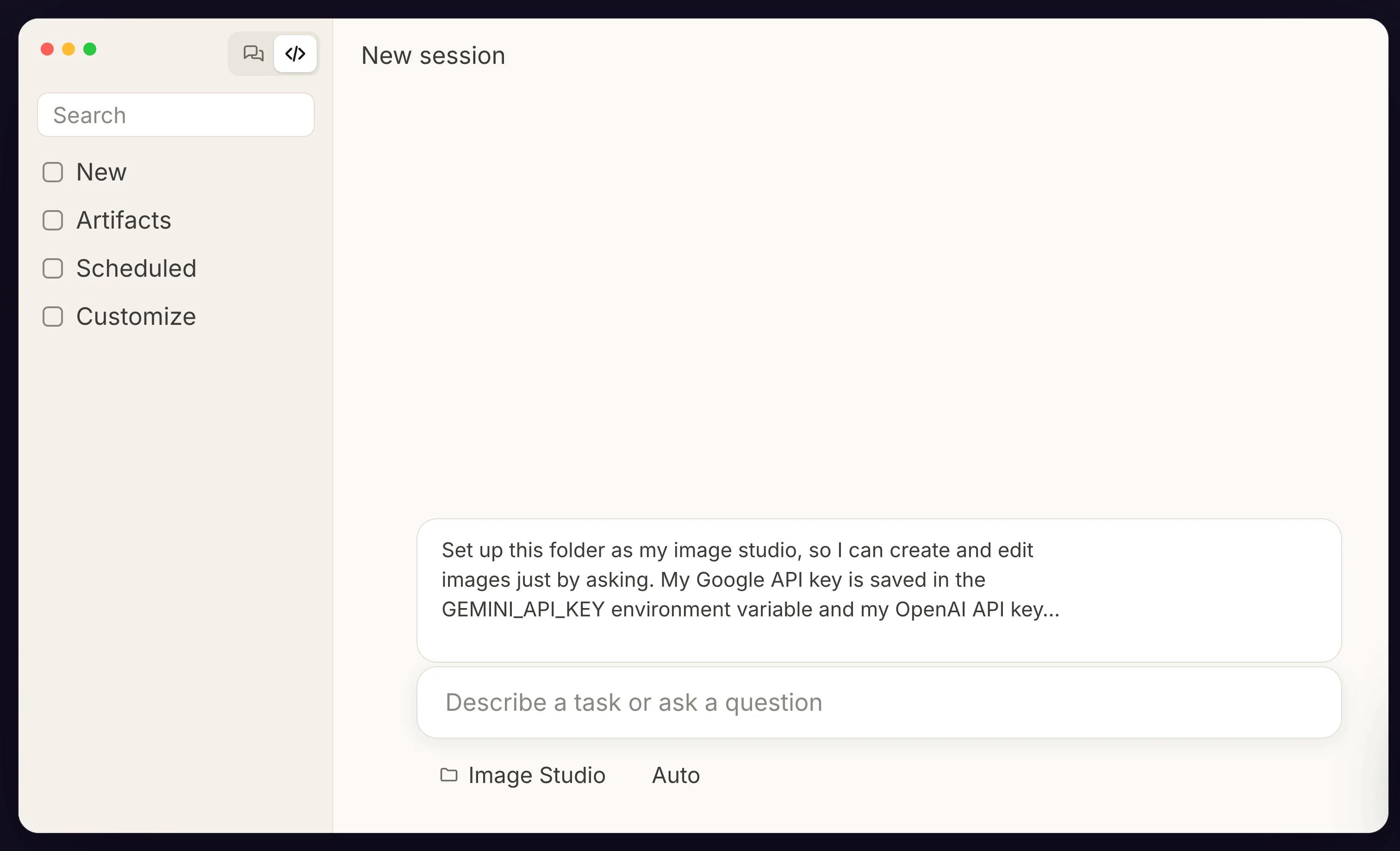
CLAUDE.md is a plain note that Claude opens automatically whenever a new chat starts in that folder. Thanks to it, you never have to explain the tool twice.
- Before running any command, Claude stops for your permission, so press Allow each time. You'll watch it create the script, the CLAUDE.md note and an images folder. On a Mac, if your computer offers to install command line developer tools, accept and let Claude continue.
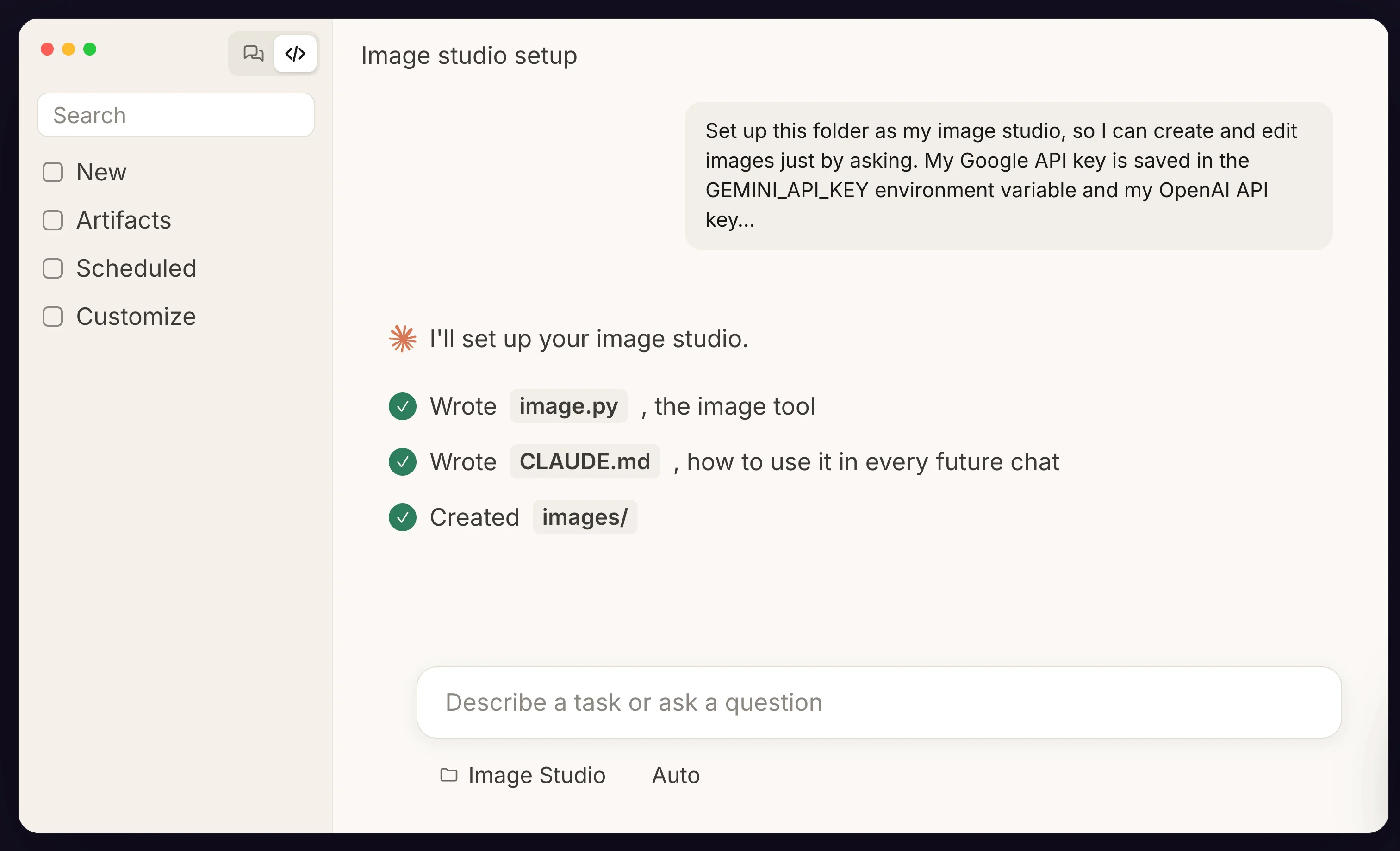
- At the end, Claude makes one cheap test image with each key. Mine were a banana on a wooden table from Google (3.4 cents) and a red paper boat from OpenAI (0.6 cents). Yours will be different subjects.
If both images came back, the setup is done. If one failed, ask Claude to explain the error in plain words and tell you exactly how to fix it. The fix is almost always in the environment or the billing settings, never in pasting a key into the chat.
Step 5: Create Your First Image
You don't need special prompt wording. Describe the picture the way you'd brief a photographer, and Claude turns it into a detailed prompt for the model. Cover four things:
- The subject, with two or three details
- The setting, such as the surface or the room
- The light, such as soft morning light or golden hour
- The mood and style, such as cozy, premium or "like a professional food photo"
Also say where the image will be used, because that tells Claude what shape to make it. Here's the brief I used for the coffee shop, called Copper Cup, launching a fall drink:
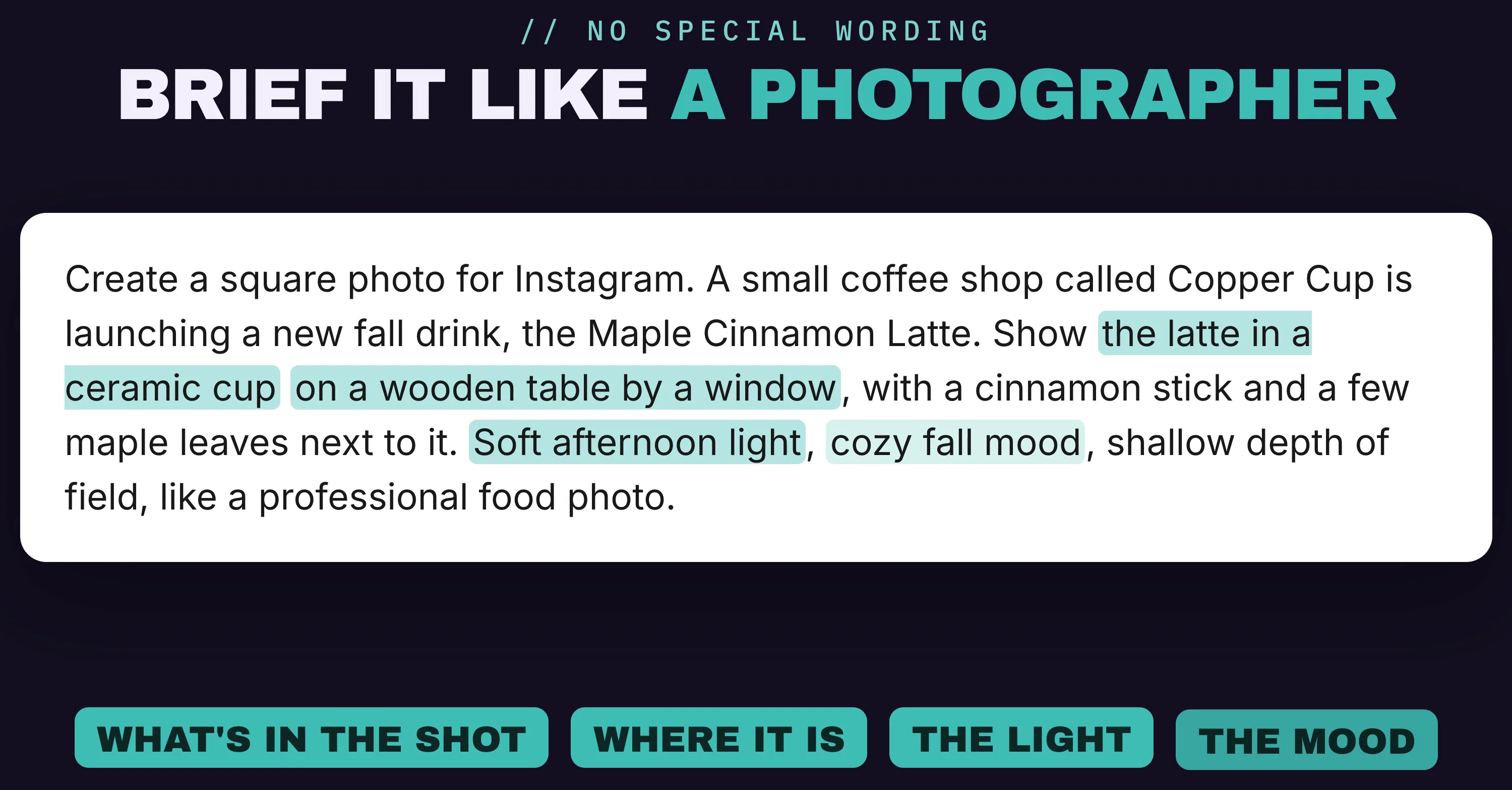
Create a square photo for Instagram. A small coffee shop called Copper Cup is launching a new fall drink, the Maple Cinnamon Latte. Show the latte in a ceramic cup on a wooden table by a window, with a cinnamon stick and a few maple leaves next to it. Soft afternoon light, cozy fall mood, shallow depth of field, like a professional food photo.
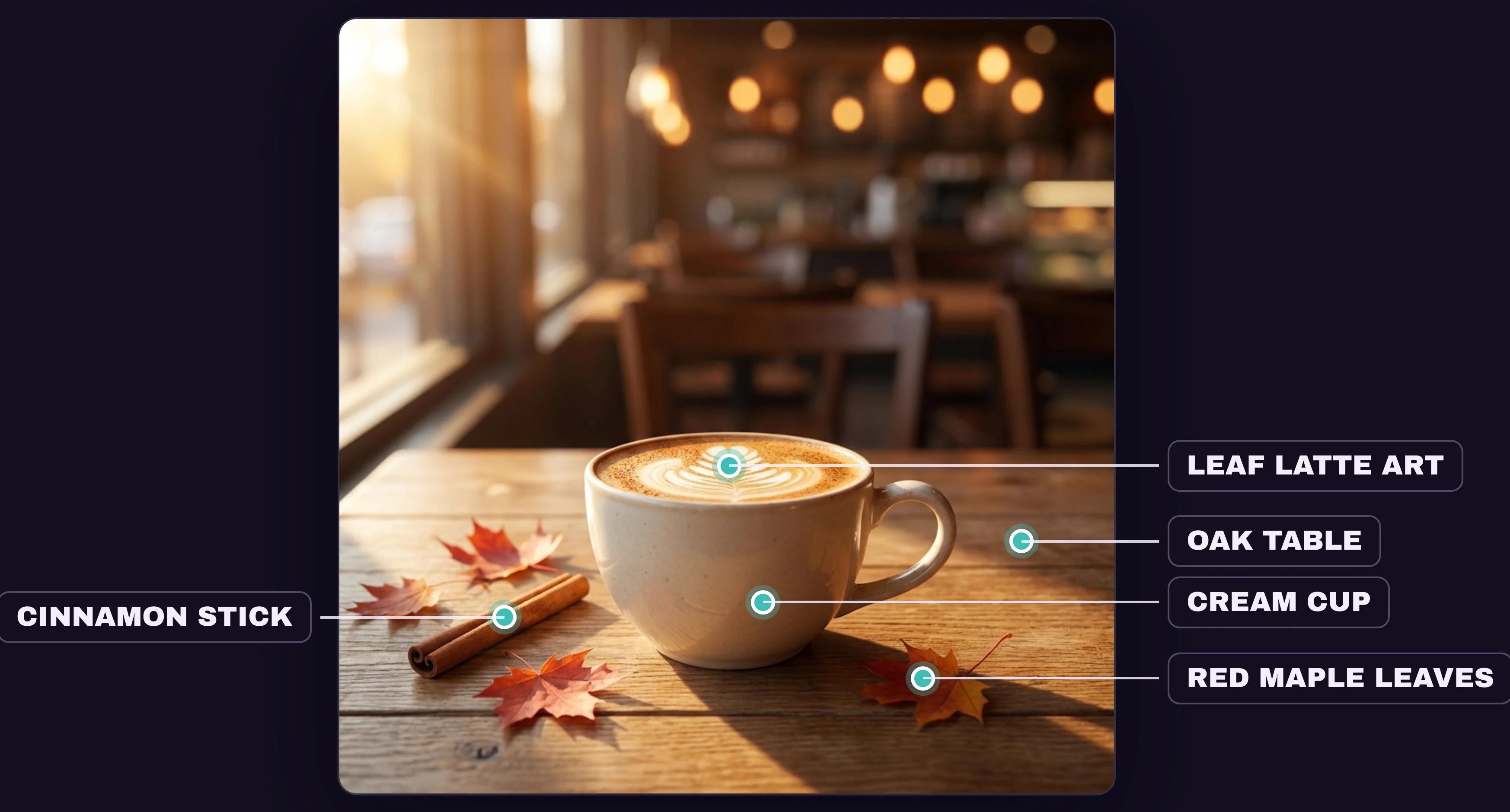
Nano Banana Pro took about 15 seconds and 13 cents. It showed a cream cup of latte with a leaf in the foam, on an oak table beside a cinnamon stick and red maple leaves, lit by warm sun from the window.
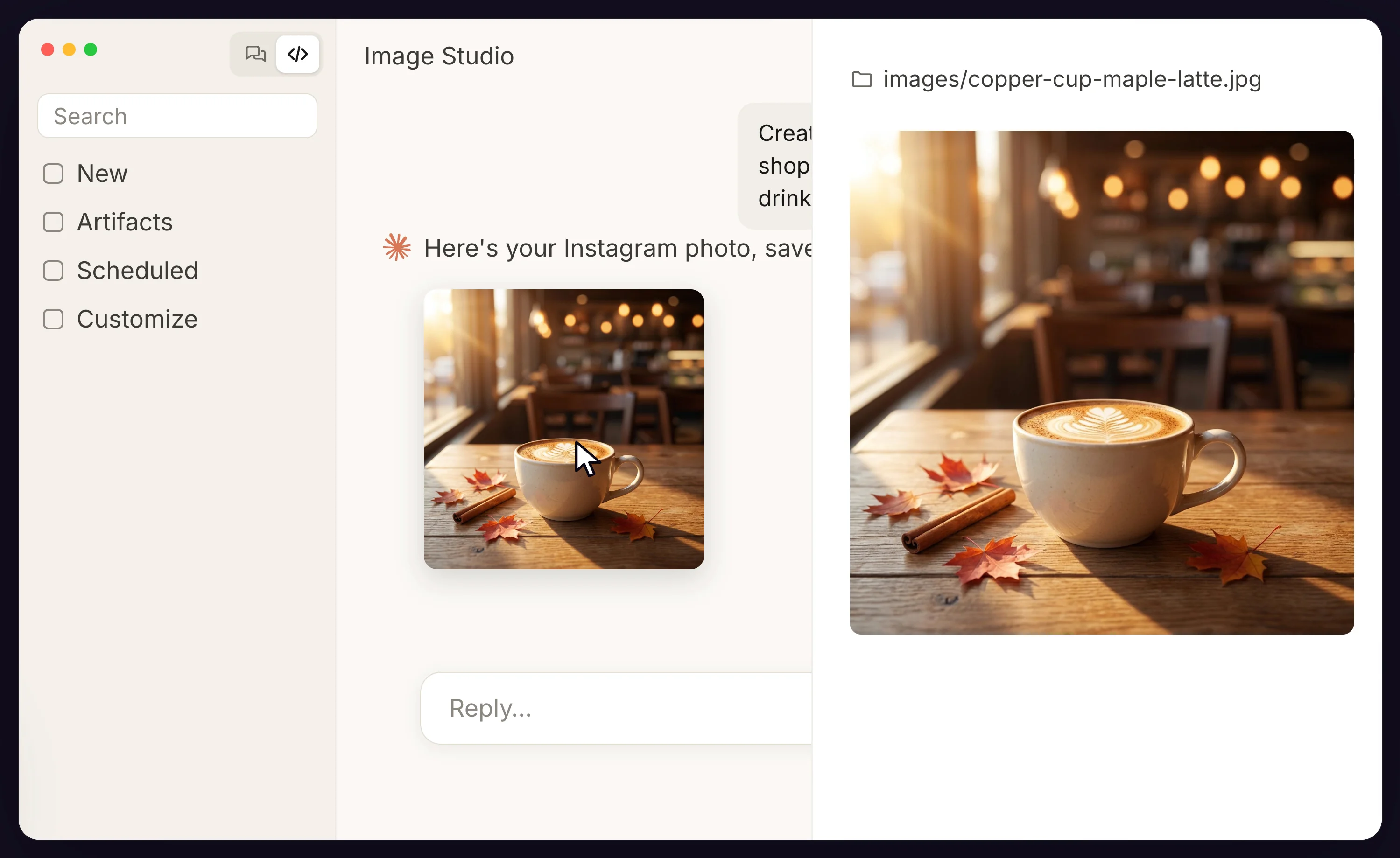
Each picture lands in the images folder under a descriptive name, and clicking the thumbnail in Claude's answer opens it full size in a side panel.
For more on writing clear instructions for any AI tool, see my guide to prompt engineering.
Step 6: Edit the Image
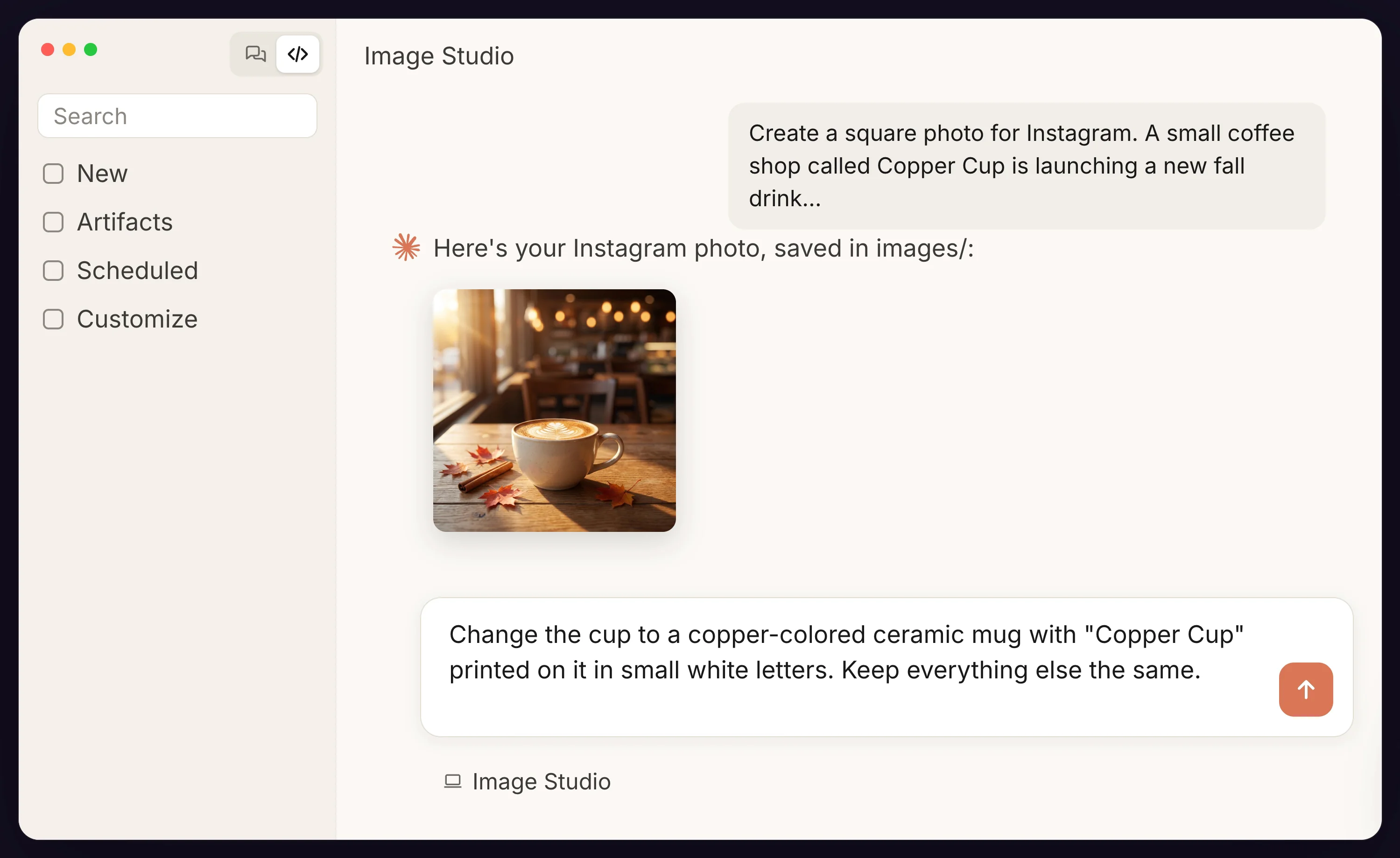
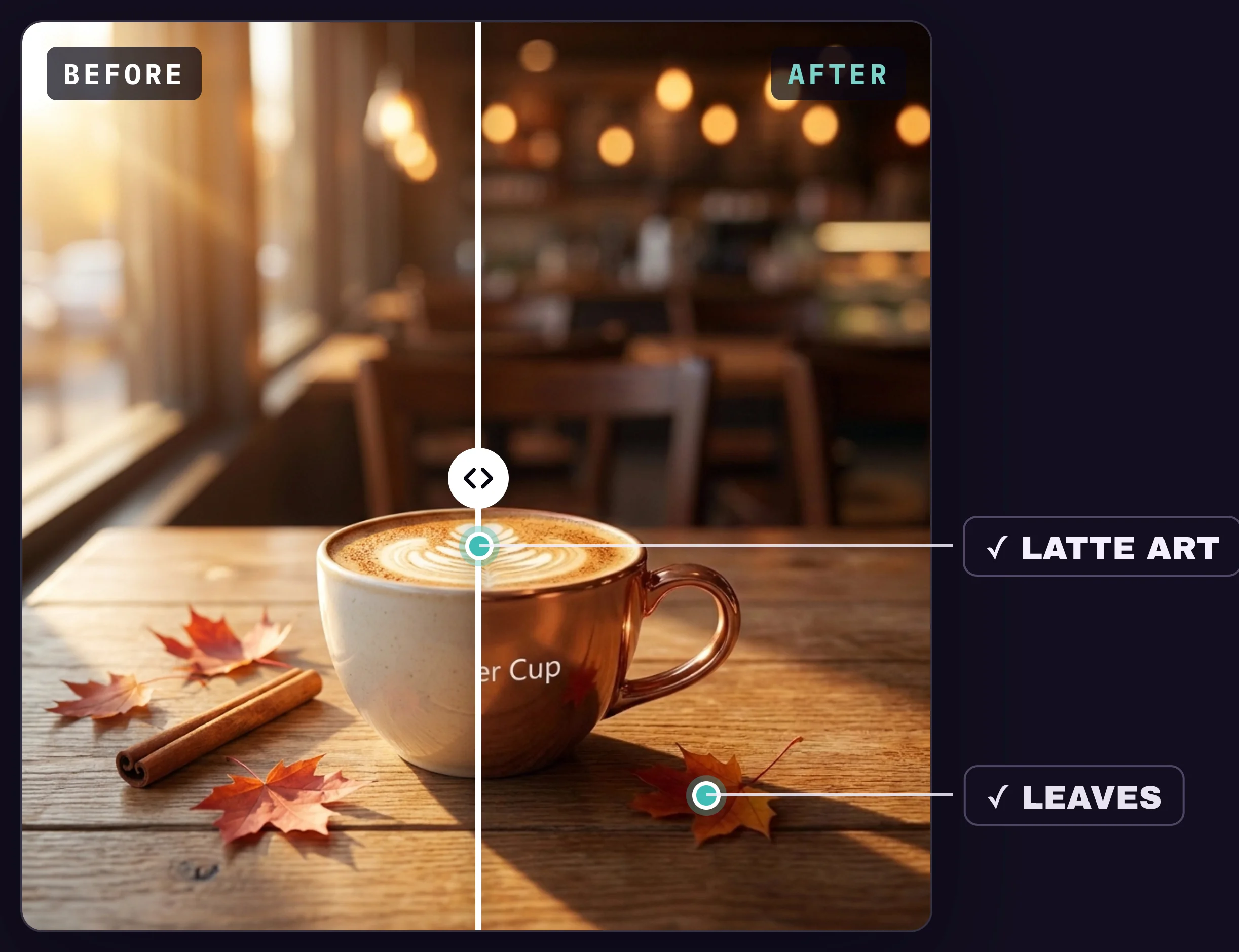
When one detail is wrong, don't start again. Describe the fix, and Nano Banana repaints just that area. In the same chat, I asked for a branded mug:
Change the cup to a copper-colored ceramic mug with "Copper Cup" printed on it in small white letters. Keep everything else the same.
Back came a polished copper mug with Copper Cup in neat white type. Nothing else moved: same foam leaf, same cinnamon stick, same light, and the maple leaves now show up as reflections in the metal.
Three habits make edits work:
- Describe only the change. If you describe the whole scene again, the model may redraw all of it.
- Finish with "Keep everything else the same." It tells the model what to protect.
- Change one thing per message. When something goes wrong, you'll know which request caused it.
By default Claude works on the most recent image (name a file to pick an older one), and every edit becomes a separate file, so you can always go back. An edit costs the same as a new image.
Step 7: Edit Your Own Photos
Edits work just as well on photos you already have. Drag a photo into the message box, or copy it into the Image Studio folder and refer to it by file name. A clear, well-lit photo with one person facing the camera works best.
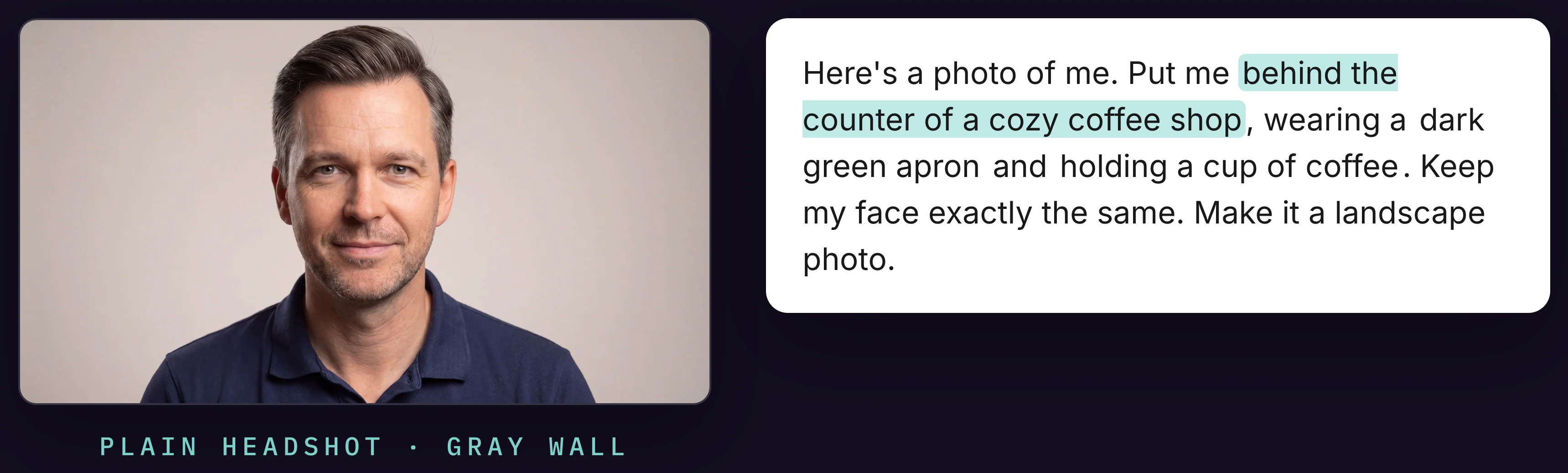
For the demo, I used a plain headshot of our video presenter against a gray wall:
Here's a photo of me. Put me behind the counter of a cozy coffee shop, wearing a dark green apron and holding a cup of coffee. Keep my face exactly the same. Make it a landscape photo.
The result kept the same face and hair, added the green apron and placed the person beside an espresso machine with shelves of coffee bags in the background, for 13 cents.
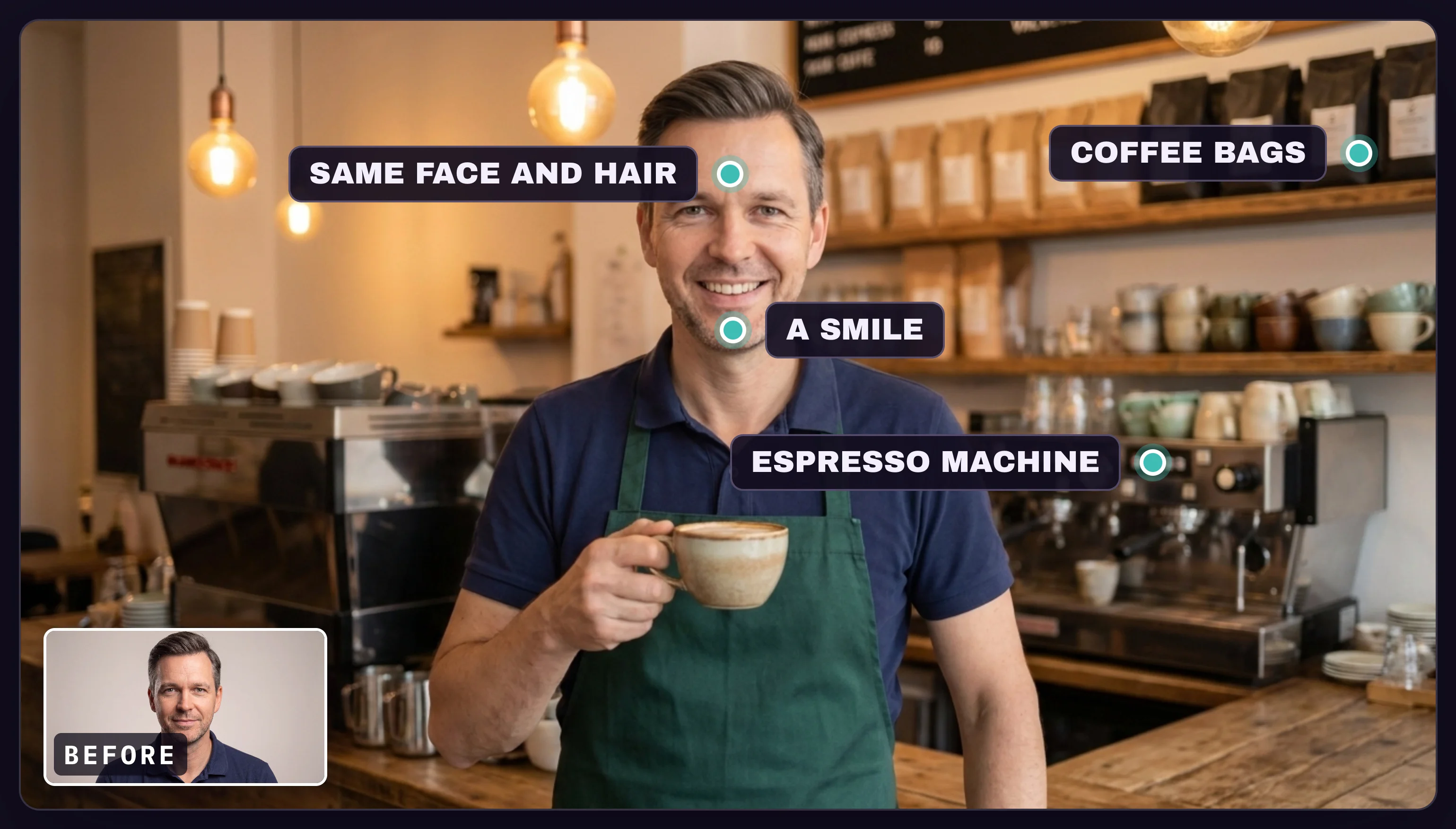
Look closely before you use a result like this. The model added a much bigger smile than in the original, put the person in front of the counter instead of behind it, and turned a chalkboard in the background into gibberish. If your expression matters, tell Claude to leave it unchanged. Crop out or remove any background writing.
Stick to photos of yourself or of people who gave you permission, and don't present an edited photo of a real person as something that really happened.
Step 8: Add Text With GPT Image
To switch to your OpenAI key, simply ask for GPT Image in the message. It's the better pick when the picture has to carry words, such as a poster or a sign:
Use GPT Image to make a portrait poster for the counter of Copper Cup. Headline: "New for Fall". Below it: "Maple Cinnamon Latte" and the price "$5.75". Warm fall colors, a latte with maple leaves, clean and modern design.
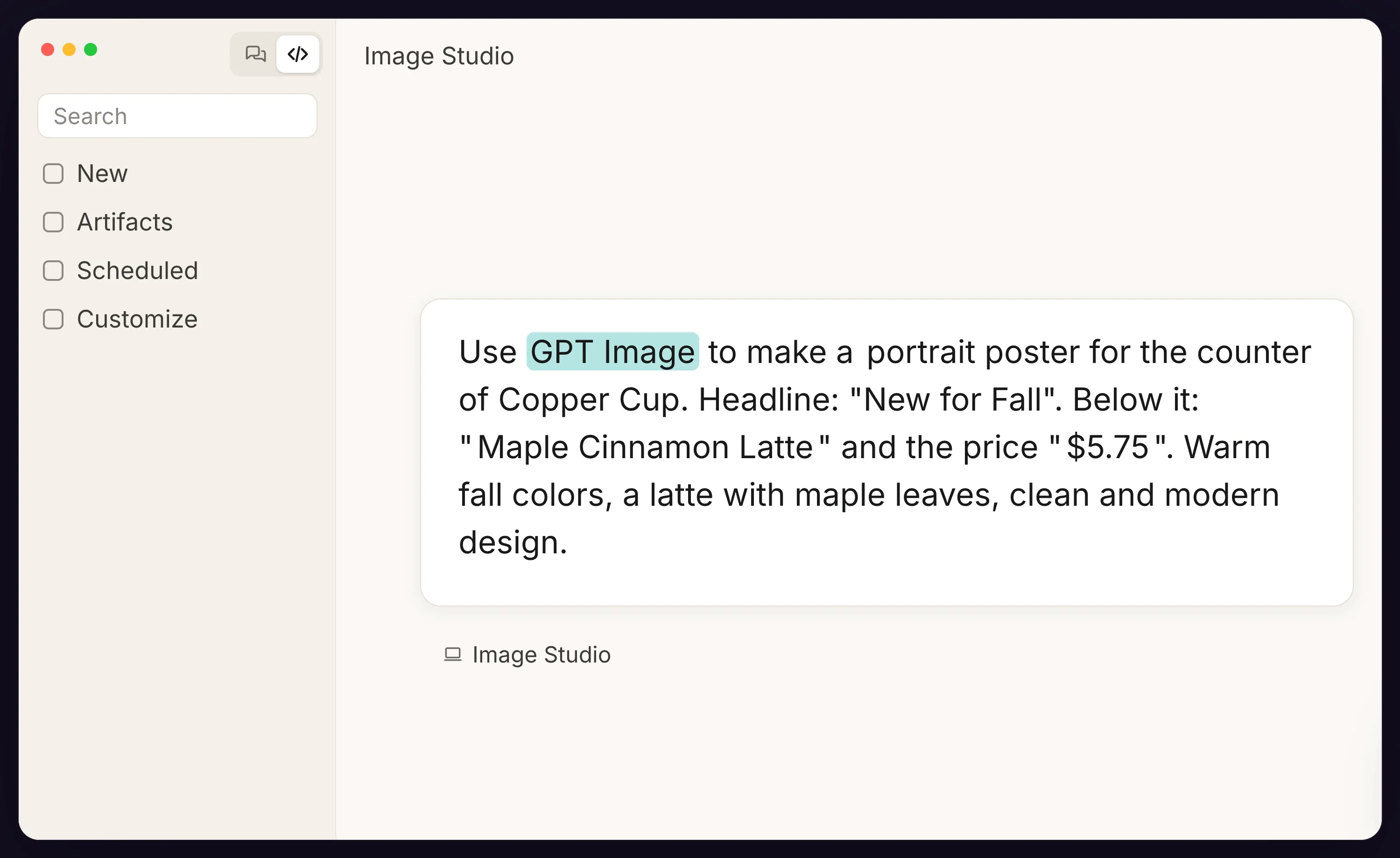
The poster led with "New for Fall", showed a latte in a copper mug with maple leaves, and listed the drink name and price underneath, with every word spelled correctly. It cost under a cent.
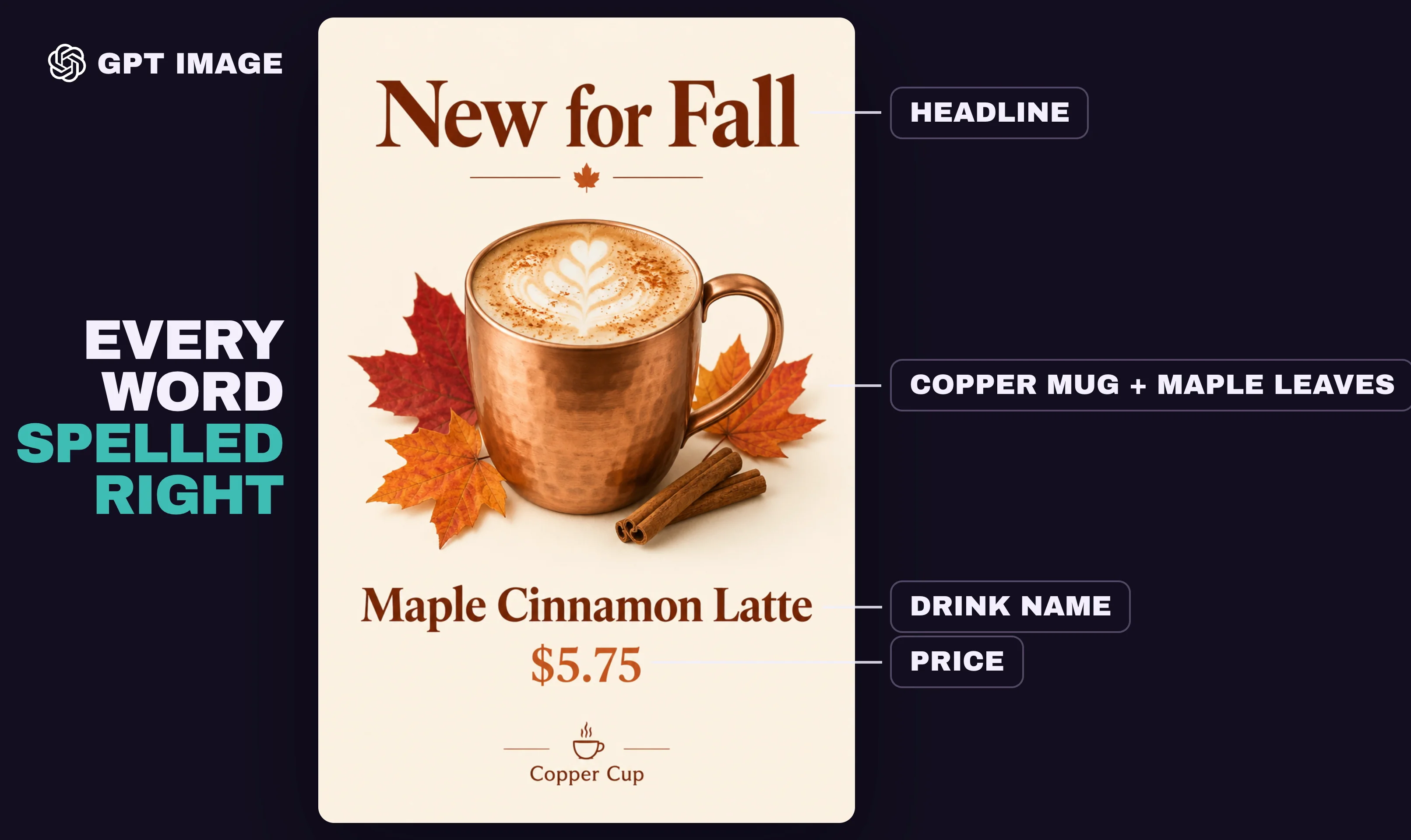
Wrap any wording that has to appear in quotation marks, say where it belongs, and zoom in to check each letter before you print or post it.
For text that is guaranteed to be right, combine the two ways Claude makes visuals: a Nano Banana photo with the words added in code.
Take the latest Nano Banana photo and add the headline "New for Fall" and the price "$5.75" on top of it in code, with HTML, in a bold, clean font that is easy to read. Don't change the photo itself. Save the finished design as a PNG in the images folder and show it to me.
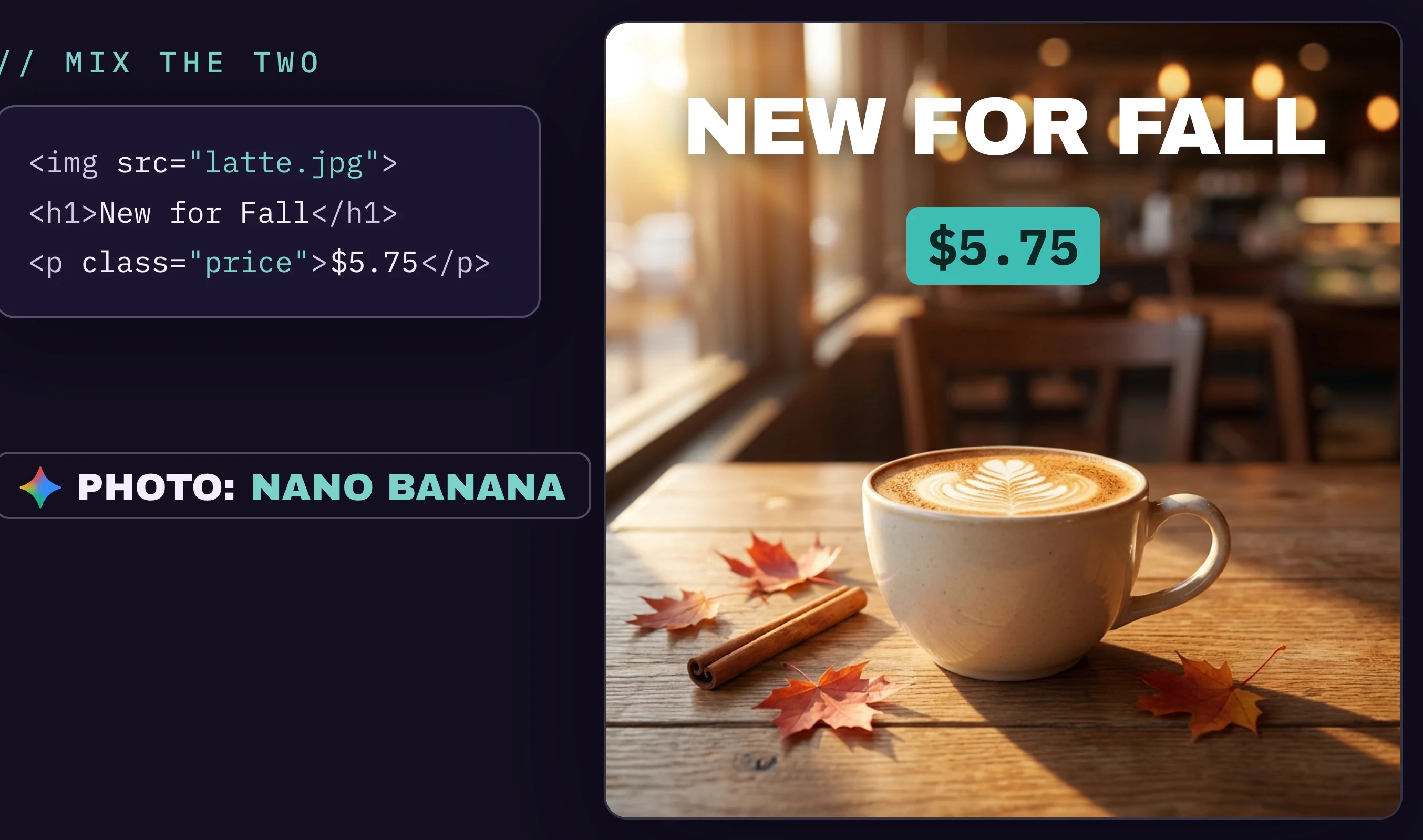
Because the words are code, changing the price later costs nothing and doesn't create a new image.
Which Image Model Should You Use?
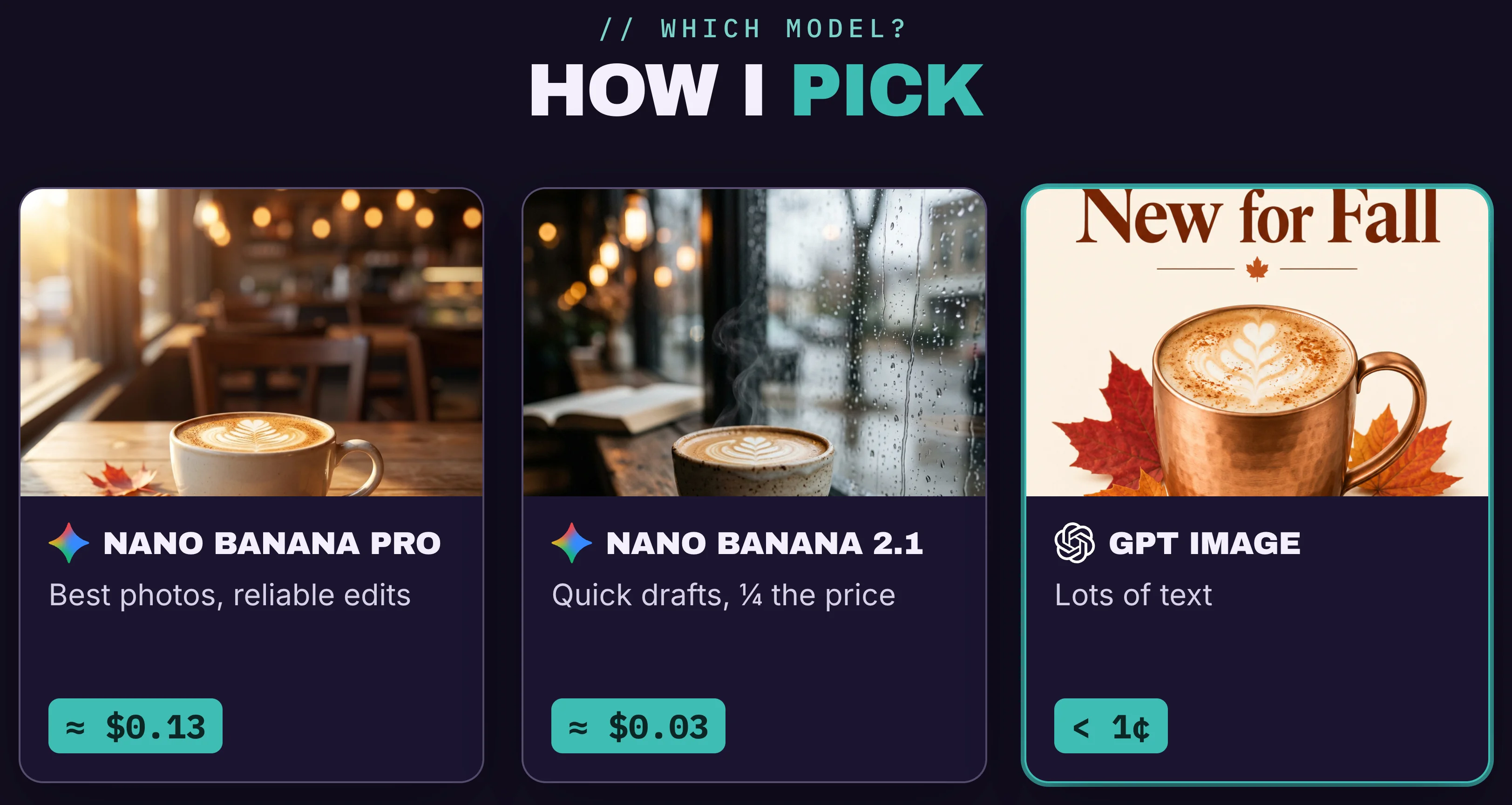
You choose the model, shape and size with ordinary words in your message. Claude sets the details. Prices are from Google's Gemini API pricing page and OpenAI's pricing page, and they change, so check them before you budget.
| Model | Use it for | Price per image | How to ask |
|---|---|---|---|
| Nano Banana Pro | Lifelike photos, and edits that leave the rest of the picture alone | $0.134 at 1K or 2K, $0.24 at 4K | Nothing special, it's the default |
| Nano Banana 2.1 | Quick drafts and trying ideas | $0.034 at 1K | "Make a quick draft" or "use the cheaper model" |
| GPT Image 2.5 | Posters, menus, signs and other text-heavy images | About $0.01 at medium quality | "Use GPT Image" |
A good way to save money is to try three cheap Nano Banana 2.1 drafts with different camera angles, pick the best, and remake only that one with Nano Banana Pro.
For the shape, name the place the image is for, or the ratio:
- Instagram or Facebook feed: 1:1 square or 4:5 portrait
- Stories, Reels and TikTok: tall (9:16)
- YouTube thumbnail or slide: landscape (16:9)
- Website hero or banner: 21:9, very wide
- Poster or flyer: 2:3 or 3:4, upright
For the size, 1K is enough for social media and drafts. Ask for 2K for websites and presentations, which costs the same as 1K on Nano Banana Pro. Keep 4K, at 24 cents, for print and large screens.
Key Learnings
Claude can't generate images by itself, but the Claude desktop app can drive the best image models for you once you give it your own Google and OpenAI keys. There's no extra subscription to buy: each image costs a few cents, and a month without images costs nothing.
You only set it up once. Get the two keys, switch on Google billing with a spend cap, save both keys in an Image Studio environment, and let one prompt build the tool and its CLAUDE.md instructions. From then on, start every image session from that environment.
For good results, brief images like a photographer, edit one detail at a time, and use GPT Image or text in code when words have to be perfect. Then check faces, hands and every letter before an image goes public.
To see how Claude fits into the rest of your marketing work, read my Claude AI marketing guide.
Resources to Learn More About AI Images
- Free Claude Image Prompts - the setup prompt plus all the other prompts in this tutorial, ready to copy.
- AI Builders Lab - practical AI workflows and a prompt library for marketers and creators.