


A sitemap is a file (usually in XML format) that lists the pages of your website you want Google to know about. It sits in your website's root folder, where search engine crawlers can read it.
To submit a sitemap to Google, sign in to Google Search Console, select your website, open Sitemaps under Indexing, enter your sitemap URL (usually sitemap.xml or sitemap_index.xml), and click Submit. The steps below walk you through it, including how to find your sitemap URL on WordPress, Shopify, and other platforms.
How to Submit a Sitemap to Google
The best way to tell Google about your sitemap is to submit it through Google Search Console. Follow these simple steps:
1. Register With Google Search Console
The first step is to create an account with Google Search Console. If you already have an account, log in and select your website from the property menu at the top left.
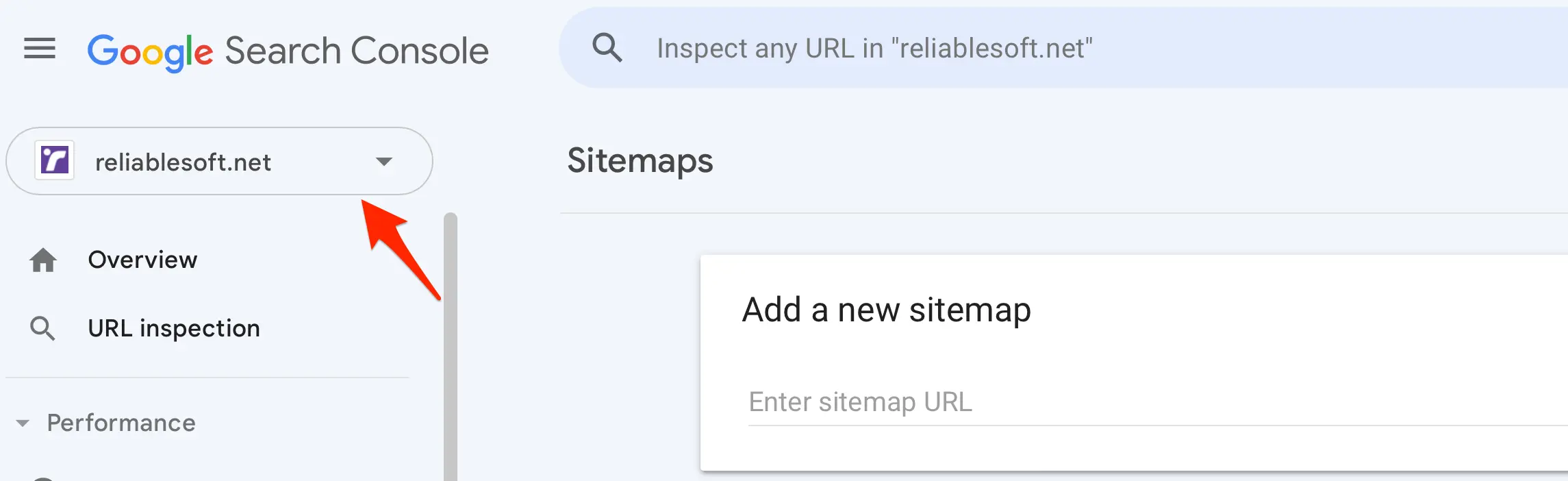
If your website is not shown in the dropdown, you need to add your website and verify it first.
Next, click on Sitemaps under Indexing in the left menu to find the Add a new sitemap box.
2. Find Your Sitemap URL
Before submitting your sitemap, you need its exact URL. Most platforms create a sitemap for you automatically and place it in the root folder of your website.

Here is where the most popular platforms put it:
| Platform | Sitemap URL |
|---|---|
| WordPress (built-in, since version 5.5) | https://example.com/wp-sitemap.xml |
| WordPress with Yoast SEO or Rank Math | https://example.com/sitemap_index.xml |
| Shopify | https://example.com/sitemap.xml |
| Squarespace | https://example.com/sitemap.xml |
To confirm, open a new browser window and type the sitemap URL. If everything is ok, you will see something like this:
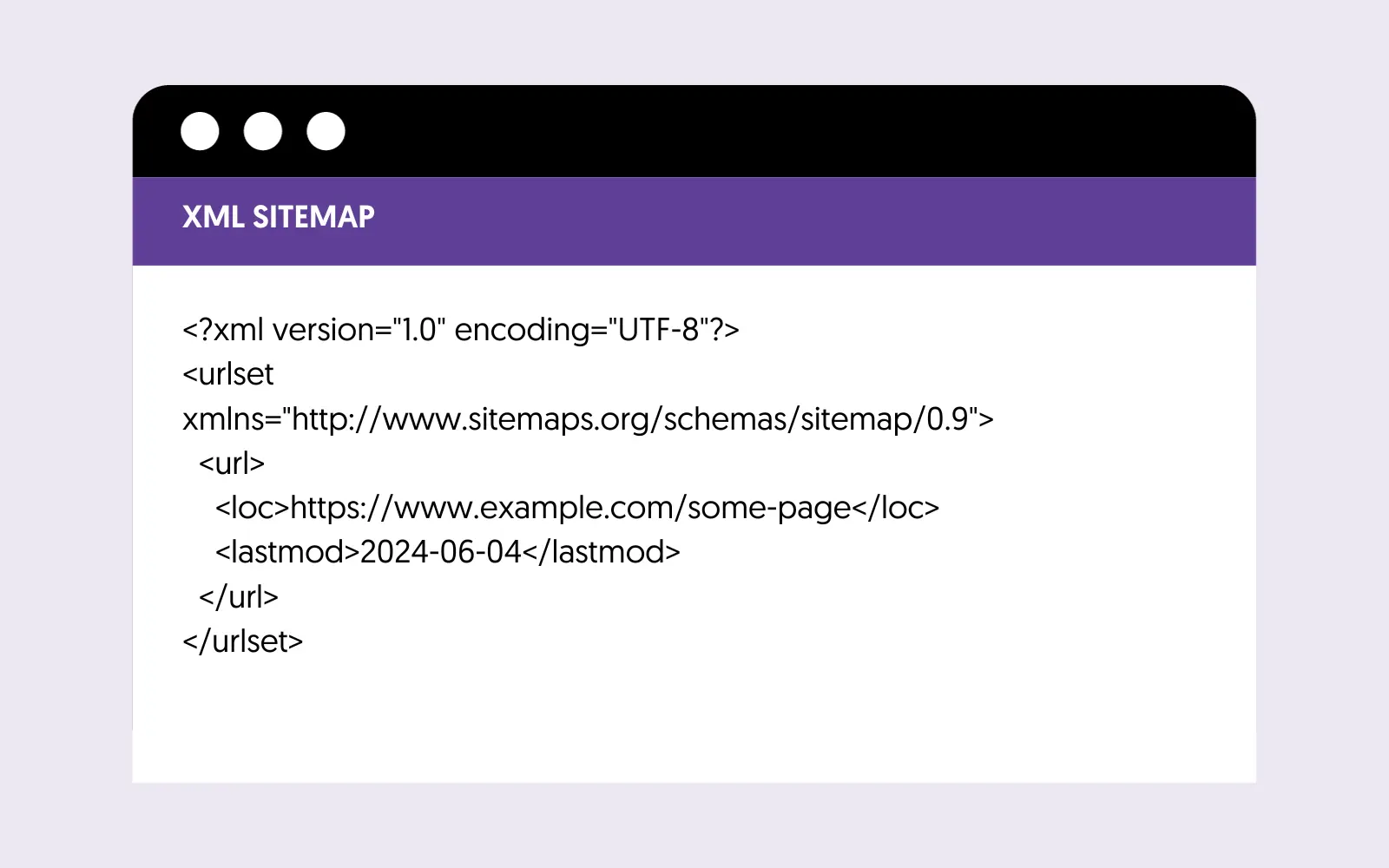
If you use a different platform and can’t find it, try /sitemap.xml first, then open your robots.txt file (https://example.com/robots.txt). Many sites list their sitemap URL there.
If you still can’t find one, your site probably doesn’t have a sitemap yet. Install an SEO plugin or a sitemap generator to create one, and read our guide to technical SEO for how sitemaps fit into your site’s setup.
3. Submit Your Sitemap
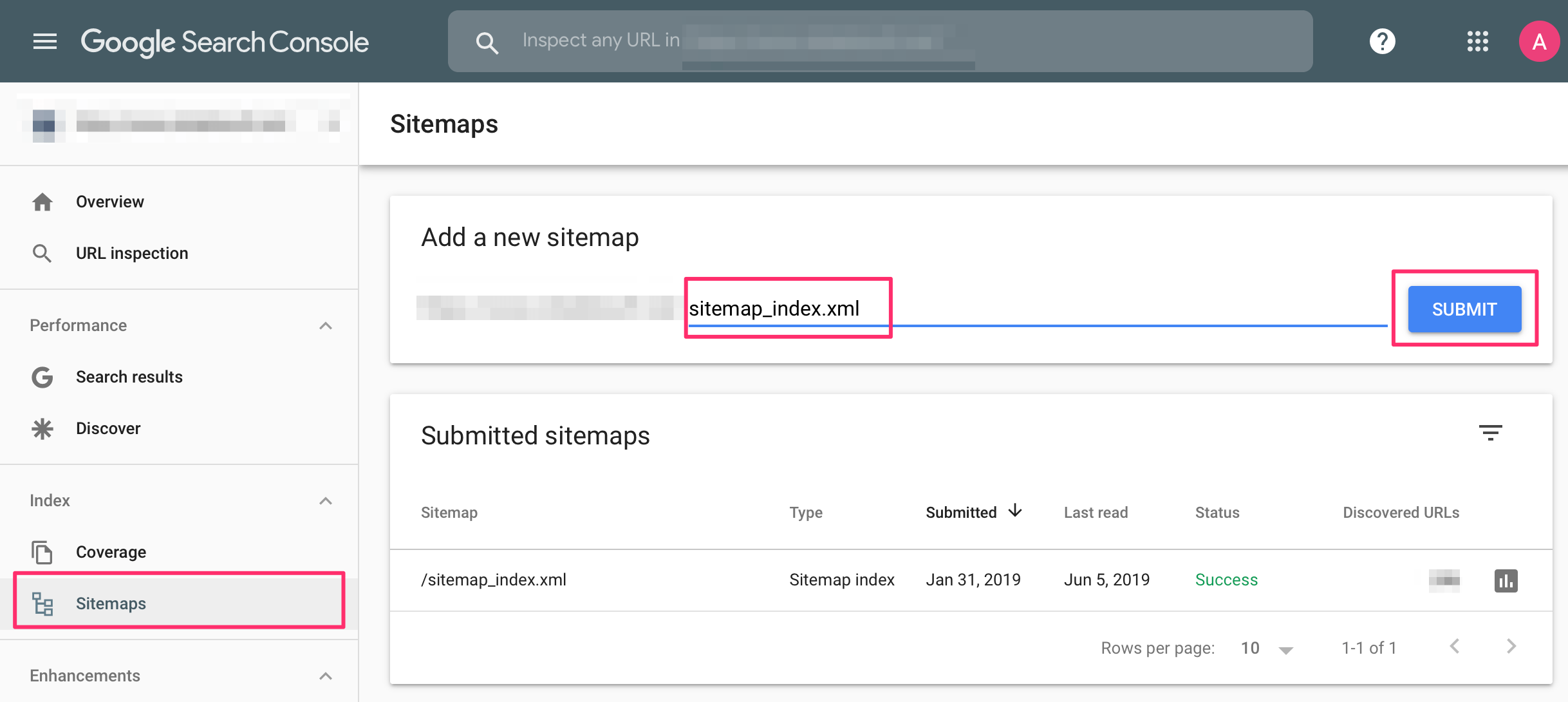
The final step is to enter the sitemap URL in the Add a new sitemap box and click Submit. Search Console already shows your domain, so you usually only need to type the last part, such as sitemap_index.xml.
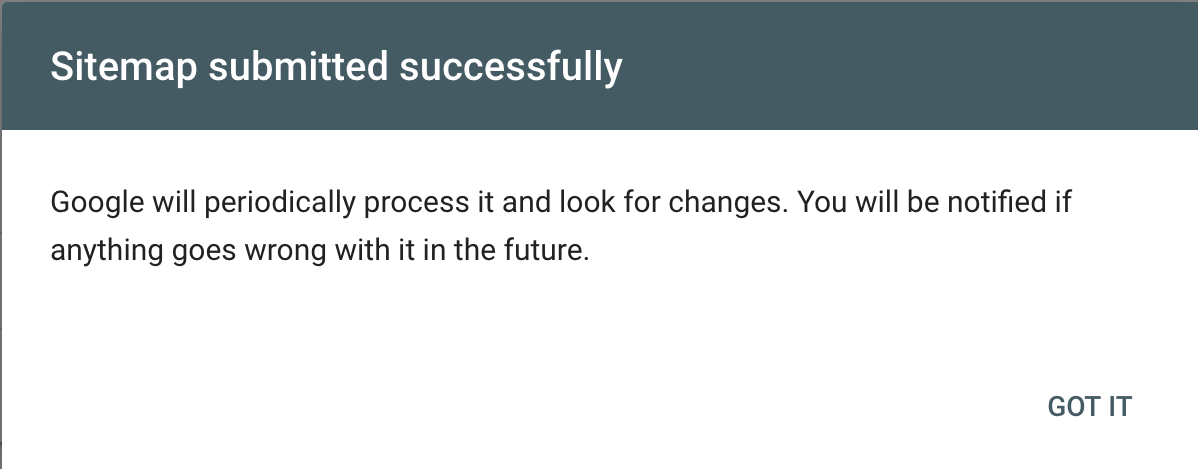
If everything is okay, you will see the “Sitemap submitted successfully” message.
Your sitemap then appears in the Sitemaps report, where you can see when Google last read it, its status, and how many URLs it found. If the status is anything other than Success, click the row to see the error.
Keep in mind that, according to Google, submitting a sitemap is “merely a hint”. It helps Google discover your pages, but it doesn’t guarantee that every URL will be crawled or indexed.
Other Ways to Submit a Sitemap
Google supports three ways to tell it about your sitemap. Search Console, described above, is the one most people use. The other two are:
1. Add it to your robots.txt file
The robots.txt file sits in your website’s root folder and gives search engines instructions about which parts of the site they can crawl. You can add a line with the location of your sitemap anywhere in the file:
User-agent: *

Allow: /

Sitemap: https://example.com/sitemap.xml
This works for all major search engines, not just Google, because they read robots.txt before crawling your site. Learn more in our guide on how to use robots.txt.
2. Use the Search Console API
Developers can submit sitemaps programmatically with the Search Console API. This is mainly useful for large sites or agencies managing many properties.
Submitting your sitemap to Bing
Bing doesn’t use Google Search Console, so submit your sitemap separately in Bing Webmaster Tools. Our guide to Bing Webmaster Tools shows you how.
How to Remove a Sitemap From Google
If, for some reason, you want to remove a sitemap from Search Console:
- Log in to Google Search Console
- Click Sitemaps (under Indexing)
- Click on the sitemap file you want to remove
- Click the three dots (top right corner) and select Remove sitemap

Note that removing a sitemap only removes it from the report. Google won’t forget the sitemap or the URLs listed in it. If you want those pages out of Google’s results, add a noindex tag to them. To stop Google from crawling them, block them in robots.txt.
FAQs
Here are some popular questions people have about sitemaps.
Do I Need to Submit a Sitemap to Google?
In most cases, yes, because it helps Google find your pages faster. But it isn’t required for every site. Google says you might not need a sitemap if your site is small (about 500 pages or fewer) and all your important pages are linked from your menu or from other pages. A sitemap is most useful for large sites, new sites with few links from other websites, and sites with a lot of video or images.
Should You Add Your Sitemap To Robots.txt?
Yes, it’s a good idea. It’s free, takes one line, and helps every search engine find your sitemap, not just Google. See other ways to submit a sitemap above for the exact format.
How Do I Resubmit My Sitemap to Google?
Open the Sitemaps report in Search Console, enter the same sitemap URL in the Add a new sitemap box, and click Submit again.
You don’t need to do this every time you publish or update a page, because Google checks your sitemap for changes on its own. Resubmitting makes sense after big changes, like a website redesign, a domain change, or a new URL structure.
Should I Submit Every Sitemap in My Sitemap Index?
No. Plugins like Yoast SEO create a sitemap index (sitemap_index.xml) that links to smaller sitemaps for posts, pages, and categories. Submitting the index is enough, and Google will find the individual sitemaps inside it.
Why Does Search Console Say “Couldn’t Fetch”?
It means Google couldn’t read your sitemap. Check that the URL opens in your browser, that it isn’t blocked by your robots.txt file, and that it doesn’t require a login. You can test whether Google can reach the file with the URL Inspection tool.
What To Include In My Sitemap?
Include only the pages of your website that you want to appear in Google search results. Pages with duplicate or thin content, and pages with a noindex tag, should not be in your XML sitemap.
A single sitemap can contain up to 50,000 URLs or 50MB (uncompressed). Larger sites need to split it into several sitemaps and use a sitemap index.
Google ignores the priority and changefreq values in a sitemap, but it does use lastmod (the date a page was last changed) if it’s accurate. To ask Google to look at one specific page, see how to ask Google to recrawl your site.
Key Learnings
A sitemap is a useful tool for SEO. It tells search engines which pages of your website you want them to know about.
You can also use it to give search engines information about your multilingual implementation (in case your website is available in multiple languages).
Submitting a sitemap to Google is a straightforward task: find your sitemap URL, add it in Google Search Console, and add it to your robots.txt file too.
Once submitted, Google checks the sitemap for changes, so you don’t have to resubmit it whenever you publish or update a post.