

The website favicon is shown in Google search results and can enhance the presentation of your search snippet, resulting in more clicks and brand awareness.
In this guide, you'll learn how to create and add a favicon to your website according to Google standards.
What Is a Favicon?
A favicon is a small, square image that represents your website. It is also known as a website icon, favorite icon, or bookmark icon. It appears in browser tabs, bookmark lists, and, most importantly, in Google search results next to your website's name.
A favicon helps users quickly recognize and click through to your site, enhancing your brand's visibility and credibility.
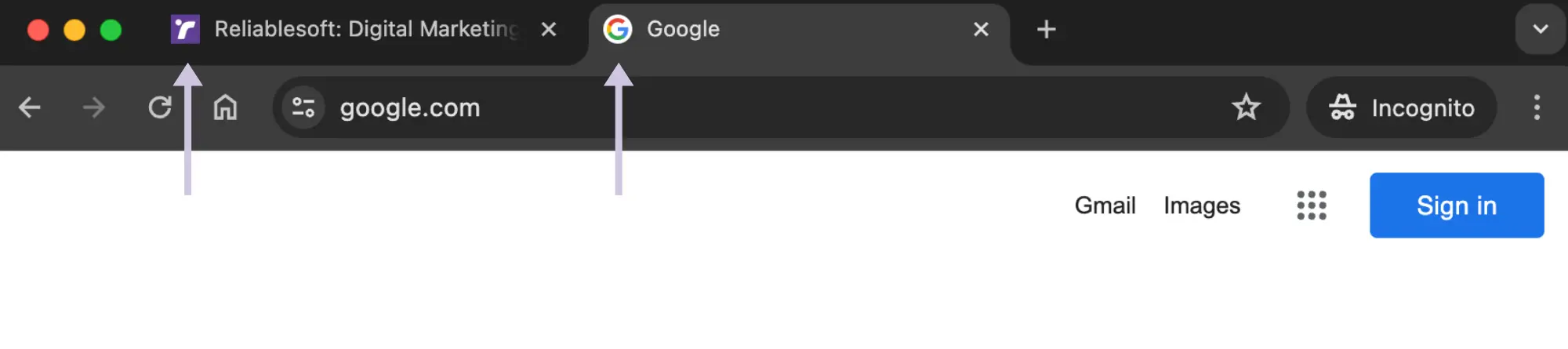
Here is an example of a favicon in the browser tab.
Add in Google SERPs.

For the favicon to appear in Google search results, it has to meet certain guidelines and be added correctly to your website.

Let's see how to create a favicon that meets Google standards.
How To Create a Favicon? (Tools & Specifications)
Follow these steps:
1. Design the Icon
Use a graphic design tool like Adobe Photoshop or Illustrator or a free alternative like Canva to design a favicon that accurately represents your brand.
2. Use the Correct Dimensions
Your favicon must be square, with a minimum dimension of 48px X 48px. For best results, make your icon big enough, i.e., 512px X 512px, to be recognizable even at small sizes.
Currently, Google crops the icons at 26px X 26px in the search results, so test your favicon to ensure it looks good at this size.
3. Ensure Proper Padding for Clear Display
Ensure your favicon has enough padding around the main design. This padding allows the icon to display properly when transformed to circular, ensuring the edges are not cut off, and the design remains clear and professional.
4. Export the Image
Save your design in a square format, typically in PNG or JPG, and then transform it to .ICO format, the standard format for favicons.
You can use a free online converter like ConvertICO to convert your PNG or JPG file to ICO.
5. Upload the File to Your Website
Name your favicon file favicon.ico and upload it to the ROOT folder of your website.
It should be accessible directly after your domain name, i.e., https://www.reliablesoft.net/favicon.ico
How To Add Favicon To Google
Add this code to the header of your home page to let Google know where your favicon is located. In the href attribute, include the full path to your ico file like this:
<link rel="icon" href="https://www.example.com/favicon.ico">
WordPress Websites
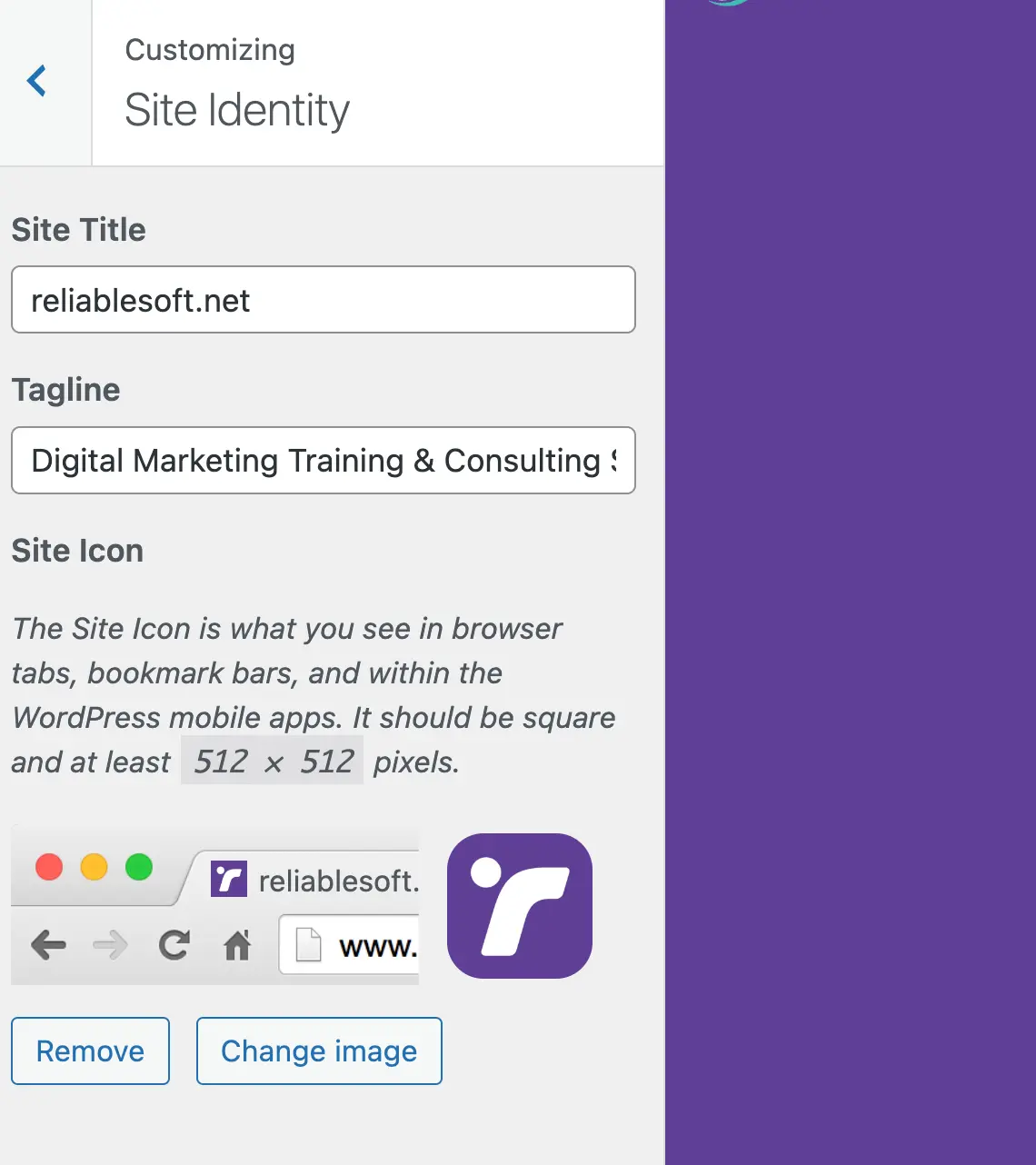
For WordPress websites, you can define your site icon in the Site Identity settings.
Click Appearance from the left menu and then Customize.
Click on Site Identify, select your image, and then click Publish.
How To Change Favicon?
When your favicon does not look in Google search results, or you want to change it for some other reason, follow these steps:
- Upload the new favicon to your website's root folder, replacing the existing image (or follow the instructions above for WordPress websites).
- If you use a caching plugin or service like Cloudflare, ensure the new image is cleared and updated in the cache.
- Go to Google Search Console and use the URL Inspection tool to request reindexing of your home page.
Updates can take a few days or longer to appear in Google search results. The browser icon should be updated immediately.
Why Is Google Not Showing My Favicon?
When there is an issue with your favicon, Google will show a default icon in the search results. You can use the following tips to troubleshoot and find the possible reason:
- Check that your favicon is accessible using this URL [https://www.example.com/favicon.icon] and has the right dimensions (square at least 48px).
- Check that it is in the correct format (.ico).
- View your home page's source code and search for
rel="icon". The code should reside in the <header> and be in the correct format (as explained above). - If your icon has symbols (like swastikas), it won't show in the search results. Check Google's guidelines for more information.
- Check that your robots.txt is not blocking Google bot from crawling your favicon.
- Clear your browser cache and check again, as sometimes old versions are stored. Check also using a Private Window (or Incognito).