
High-quality backlinks are one of the most important SEO factors.
But without knowing how many backlinks are pointing to your site and where they are coming from, it is hard to execute an effective link-building strategy.
If you have ever wondered how to find out who links to your website, this guide is for you.
I will show you the best free methods you can use to find and check the links pointing to your site, to a single page on it, or to any other site on the web.
How to Find Who Links to Your Website
Use any of these methods to find out who links to your website.
- Google Search Console Links Report
- Bing Webmaster Tools Backlinks Report
- Semrush Backlink Analysis Tool
- SE Ranking's Backlink Checker
1. Google Search Console Links Report
The first free option you can use to see who is linking to your website is Google Search Console.
GSC provides a wide array of helpful tools to monitor and manage your website's performance within the world's most popular search engine. One of these tools is the Links Report, which gives a detailed analysis of all the backlinks currently pointing to your website.

Once your search console account is set up, you can visit the links report for your web property by clicking LINKS from the left menu.
On the report, you'll find a list of your top linked pages with the number of sites linking to each page.
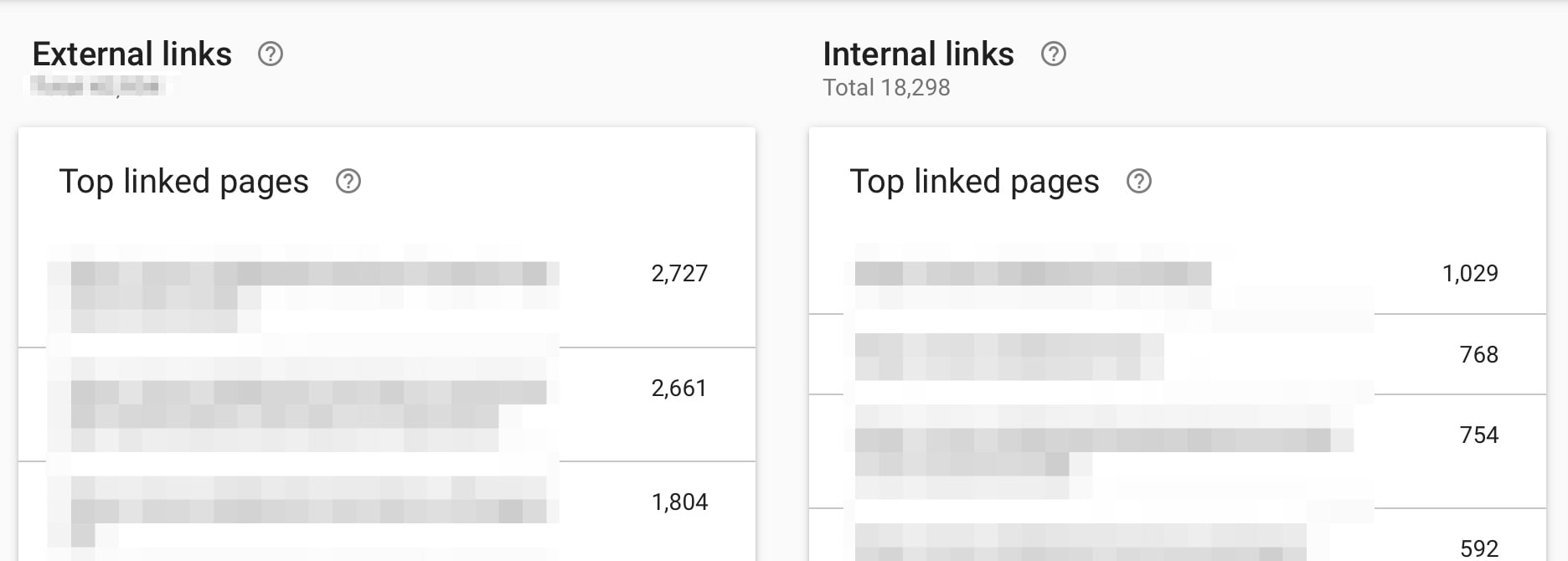
Next is a list of the top sites linking to your website. When you click on a site on the list, you can see which of your pages that domain is linking to.
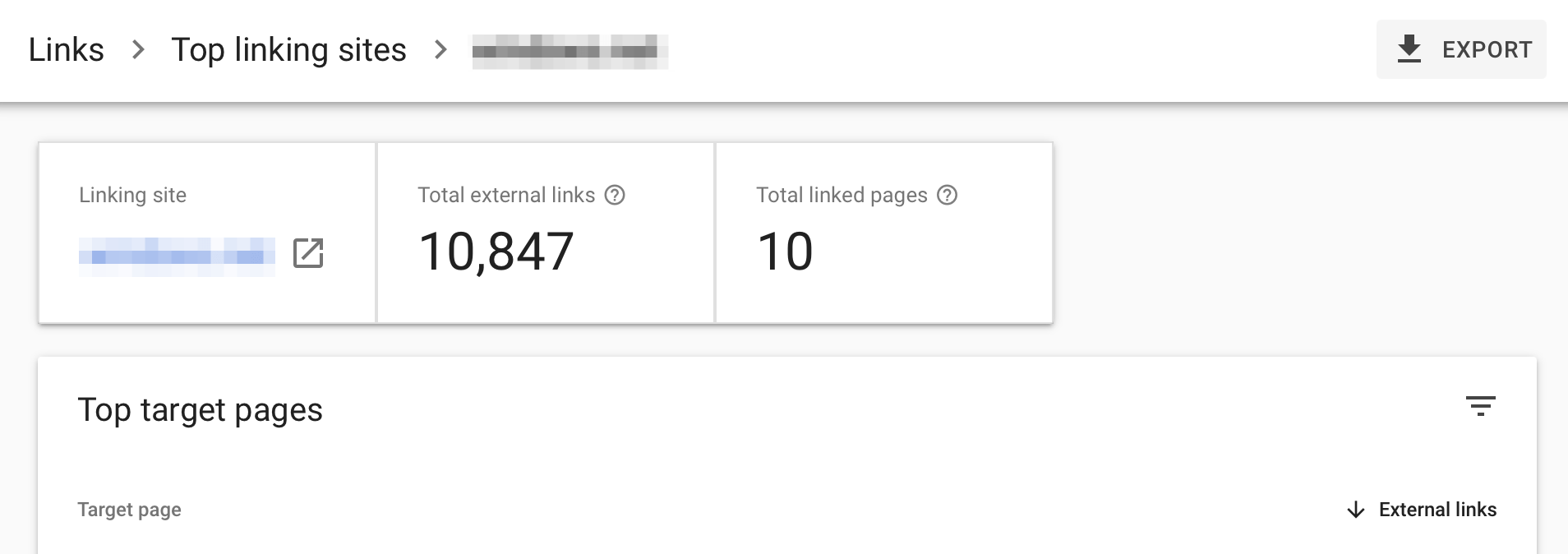
Finally, you'll find a list of top linking text that shows which anchor text websites are using when linking back to your website.
The links report also has a list of all the internal links on your site. This list can come in handy when making sure that you are building out a solid internal linking structure to help search engines crawl and understand your website.
2. Bing Webmaster Tools Backlinks Report
The next option for finding out who links to your website is Bing Webmaster Tools. The Microsoft equivalent to Google Search Console is used to monitor and manage your website's performance within the Bing search engine.
Like Search Console, Webmaster Tools has a backlink report that provides details about all the websites linking back to yours. You can find the report under SEO in the left menu.
At the top of the report, you can see the total number of referring domains, the total number of referring pages, and the total number of different anchor texts used.
The Domains section of the Backlinks Report shows you a list of all the unique domains that are linking to your site, as well as the number of backlinks coming from each domain.
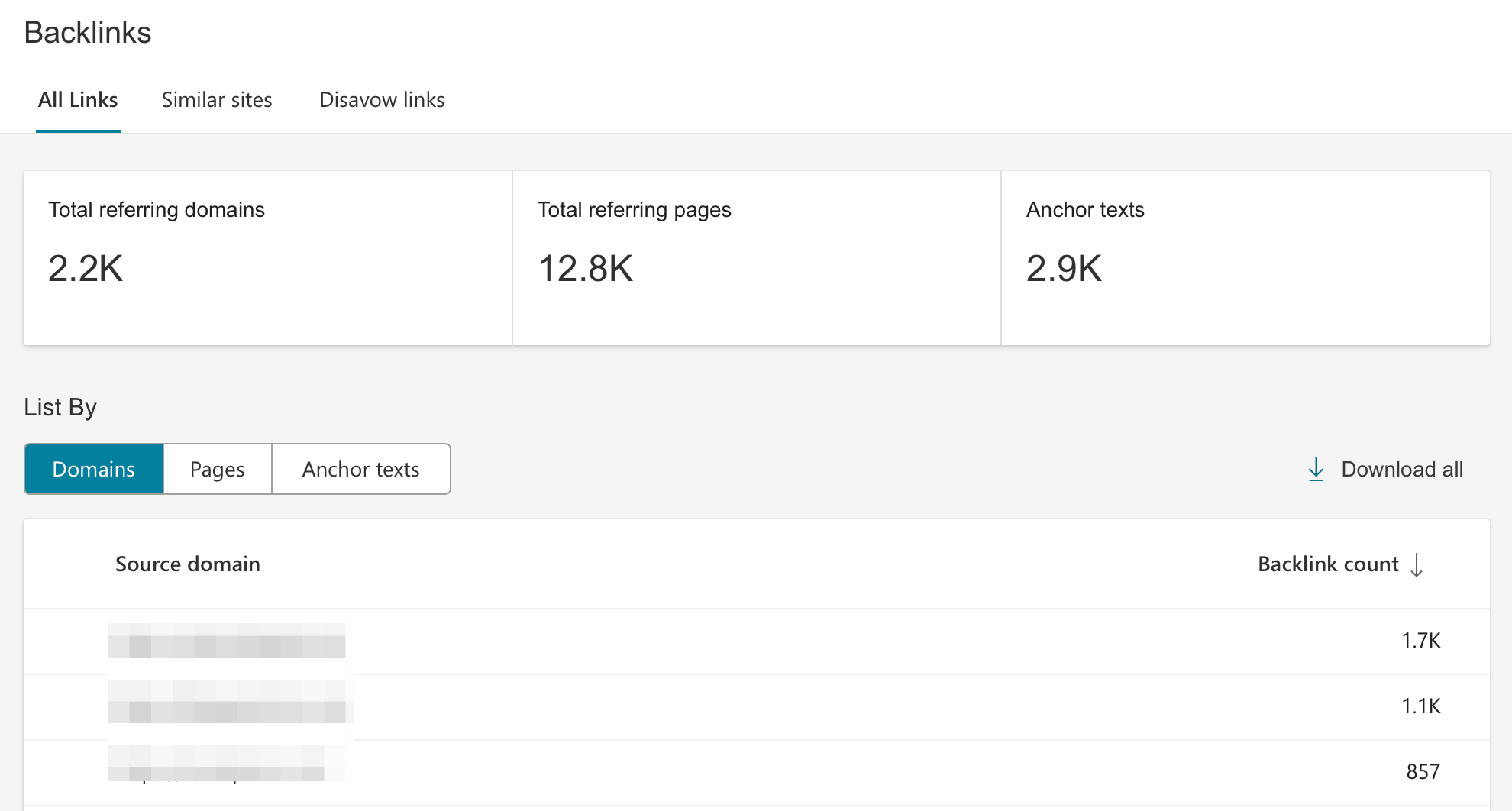
When you click on a domain, you can see which specific pages are linking to your website and which of your URLs the links are pointing to. You can also see the exact anchor text being used for each link.
3. Semrush Backlink Analysis Tool
Semrush provides a comprehensive suite of digital marketing solutions including a Backlink Analysis tool that you can use to check the links for your site or any other on the web.
When you enter your website, you are taken to an Overview tab where you can see your website's authority score, total referring domains, and the total number of backlinks.
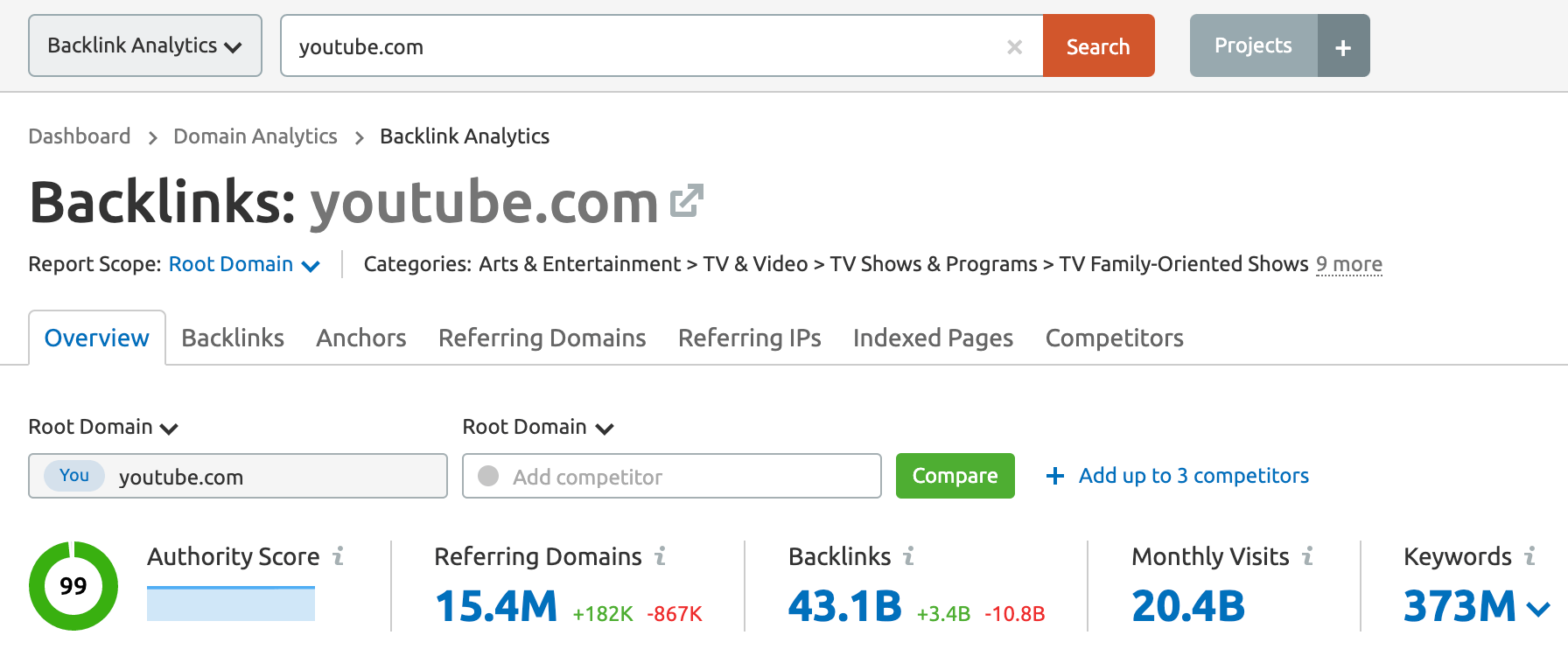
For a more detailed analysis, go to the Referring Domains tab. Here you will find a list of all the different websites linking back to you.
The table displays each website's authority score, the total number of backlinks coming from the site as well as its IP address.
When you click on the view button next to each website's backlink total you can get more insight into the links pointing to your site. By doing so you will see the specific URLs linking to your site, which of your pages the links are going to, and what anchor text is being used.
It will also show if the link is dofollow or nofollow and when Semrush first detected the link.
Semrush provides users access to the Backlink Analysis tool for free. However, with the free version, the amount of data you are able to view is limited.
When you visit the Referring Domains report for your website, you are only able to see the top 10 results. For full access to all the backlink data, you need to sign up for a paid plan.
4. SE Ranking's Backlink Checker
SE Ranking provides a robust set of SEO tools, including the Backlink Checker, which can help you perform a detailed analysis of backlink profiles, whether yours or your competitor's.
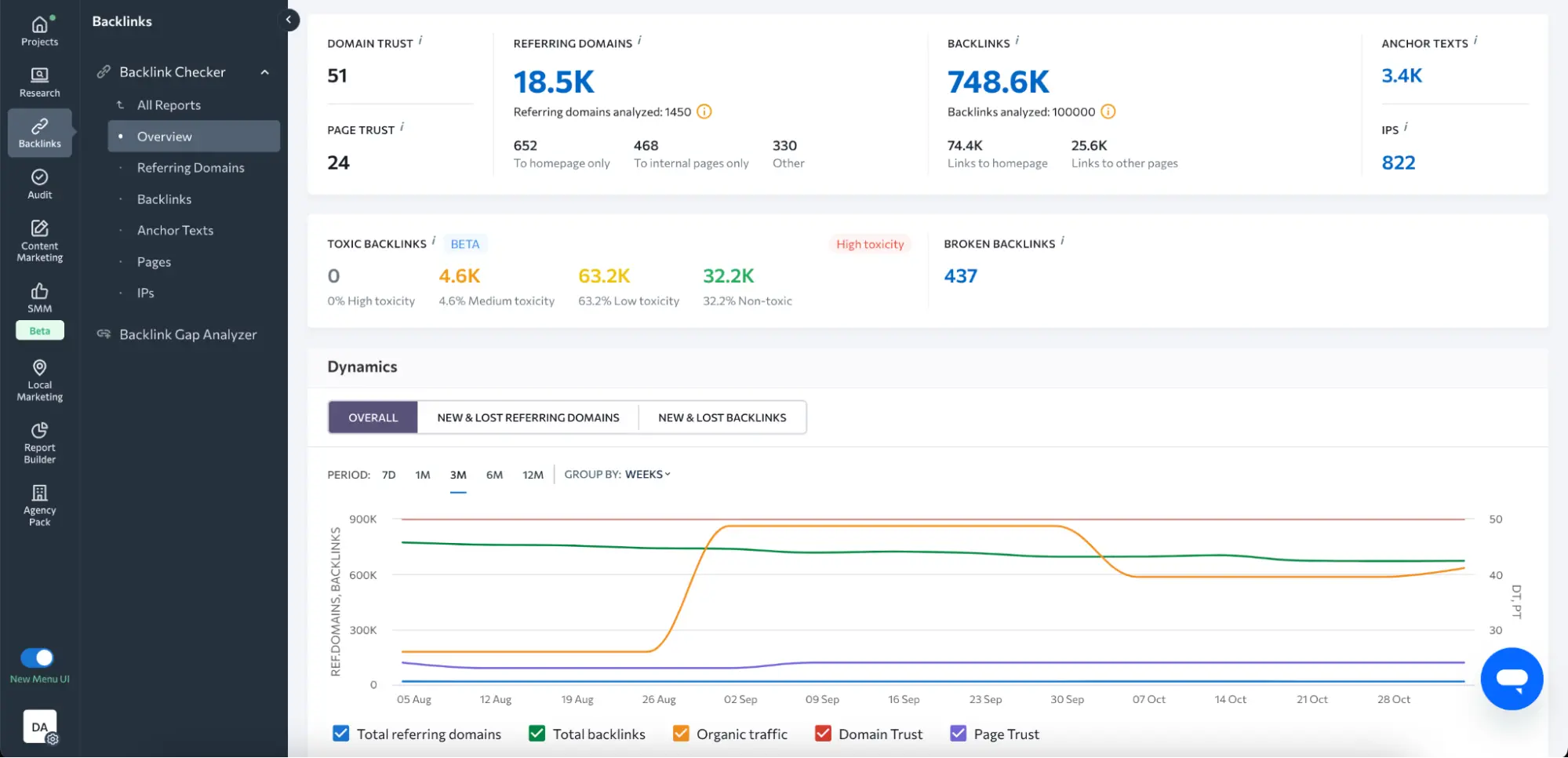
Input a website's URL to access the Overview section. There, you'll discover details such as:
- The total count of referring domains and backlinks
- The growth rate of backlinks and referring domains over time
- The percentage of links directed to the homepage versus internal pages
- The anchor texts used for backlinks
- The number and percentage of referring domains in each Domain Trust range
You can run up to 5 free backlink checks daily and gain high-level backlink insights. You can explore its full capabilities by signing up for a free 14-day trial, which gives access to SE Ranking's other features and tools.
To find pages that link to a specific URL input its URL at the beginning of the analysis and select the Exact URL option.
Alternatively, head to the Pages tab to view backlinks for all individual pages within the analyzed domain. This section displays the list of all backlinks (and referring domains) pointing to each page, along with key SEO metrics like Domain Trust, Page, Trust, toxicity score, total traffic, link type (dofollow/nofollow), and so on.
Can Google Show You Who Links to a Site?
Not from the search box, no. This is the first thing most people try and it is worth explaining why it does not work, because the method everyone remembers was switched off a long time ago.
The old trick was the link: search operator. You typed link: followed by a domain and Google returned the pages linking to it. Google retired the operator years ago and never replaced it.
What happens now is that Google reads it as ordinary text. Search for link:reliablesoft.net today and you get pages from reliablesoft.net, starting with the homepage, rather than the pages linking to it. The results look plausible at a glance, which is exactly why the operator still gets recommended in old forum threads.
There is no other operator that does the job either. site: restricts results to one domain, and a plain text search for your URL finds pages that mention the address in writing, not pages that actually link to it.
How to Find Links to a Specific Page
If you want to see the links to a particular page on your website, you can use the tools referenced above.
With the Google Search Console Links Report, you can find links to a specific page by clicking on a URL from the Top Linked Pages Report. You'll be taken to a list of all the domains linking to that page and can see how many total links are coming from that particular site.
When you click on that domain, you are taken to a list of all the specific URLs that contain links back to your target page.
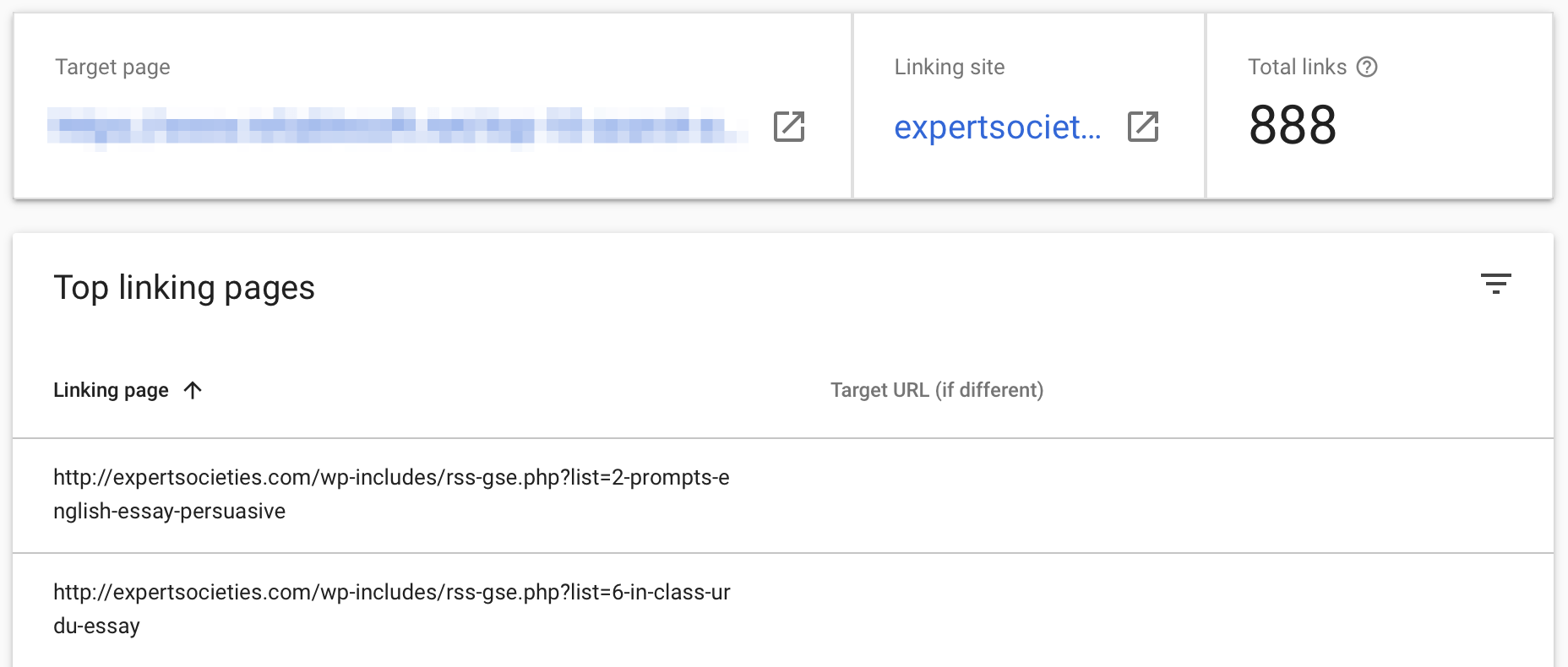
With the Bing Webmaster Tools Backlinks Report, you can see the links to a specific page by visiting either the Domains or Pages section of the report.
This will show you a list of the domains or specific pages linking to your website depending on what section you are using. By drilling into both sections you can see which of your specific pages are being linked to.
You can export the data to a spreadsheet and then search for a specific URL to quickly scan all the links pointing to that particular page.
Using the Semrush Backlink Analysis tool you can search for a specific URL directly to quickly see how many backlinks the page has and where they are coming from.
When you search for a specific URL the report is in the same format as when searching for a domain, only it shows results exclusively for that page, not the entire website.
If you click on the backlinks tab, you'll find a list of each backlink pointing to that specific page. This includes what exact URL the link is coming from and what anchor text the link is using.
How to Find Sites That Link to Any Site?
Knowing how to find out who is linking to your competitor's websites is just as useful as knowing who is linking to yours.
While you can't create a Google Search Console account to monitor your competitors, there are several tools you can use to quickly check the backlinks to any website.
Use any of these methods to find out who links to any site.
- Bing Webmaster Tools Similar Sites Report
- Ahrefs Free Backlink Checker
1. Bing Webmaster Tools Similar Sites Report
With the Bing Webmaster Tools Similar Sites report, you can compare multiple websites side by side to quickly analyze their backlink profile. You can find the report by clicking SEO > Backlinks from the left menu and then selecting the 'Similar Sites' tab.
When you first open the report, your website will automatically be selected as the first site to be used in the comparison. You'll have the option to add two more sites to compare up to three (including your site) simultaneously.
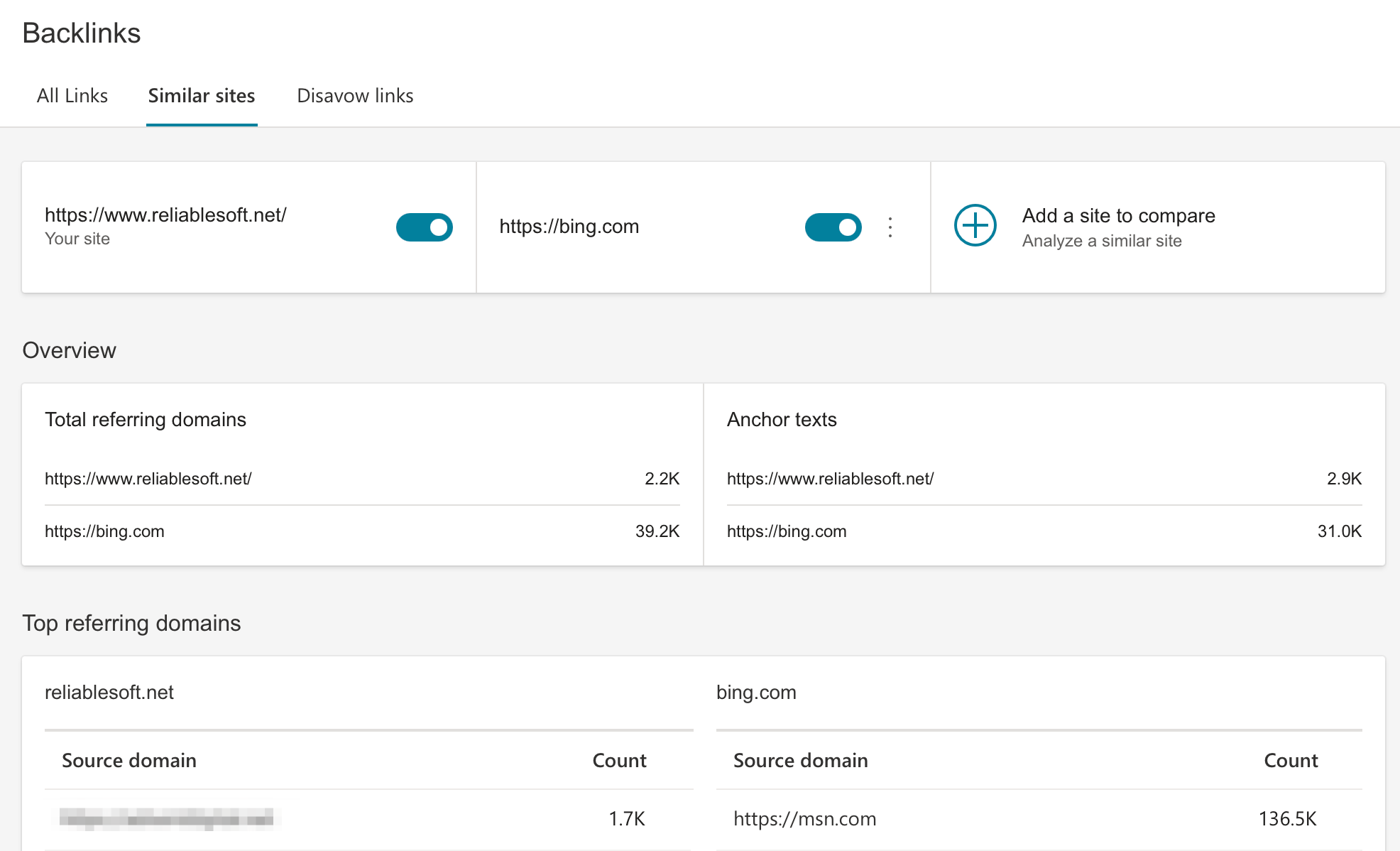
The report shows the total number of referring domains and the total number of different anchor texts for each website. There is also a complete list of all the referring domains for each website.
When you select a referring domain, you are taken to a sub-report detailing every unique URL linking to the target website along with the specific page being linked to.
2. Ahrefs Free Backlink Checker
Arguably the most effective tool for checking the backlinks to any website is the free Ahrefs Backlink Checker.
Ahrefs runs the second most active crawler on the web after Google. Its index holds 35 trillion external backlinks across 209 million domains and refreshes every 15 minutes, so the data you get back is both deep and current.
When you enter a website into the checker you receive a report packed with tons of useful info.
The overview includes the website's domain rating, the total number of backlinks, the total number of referring domains, and what percentage of the links and domains are dofollow.
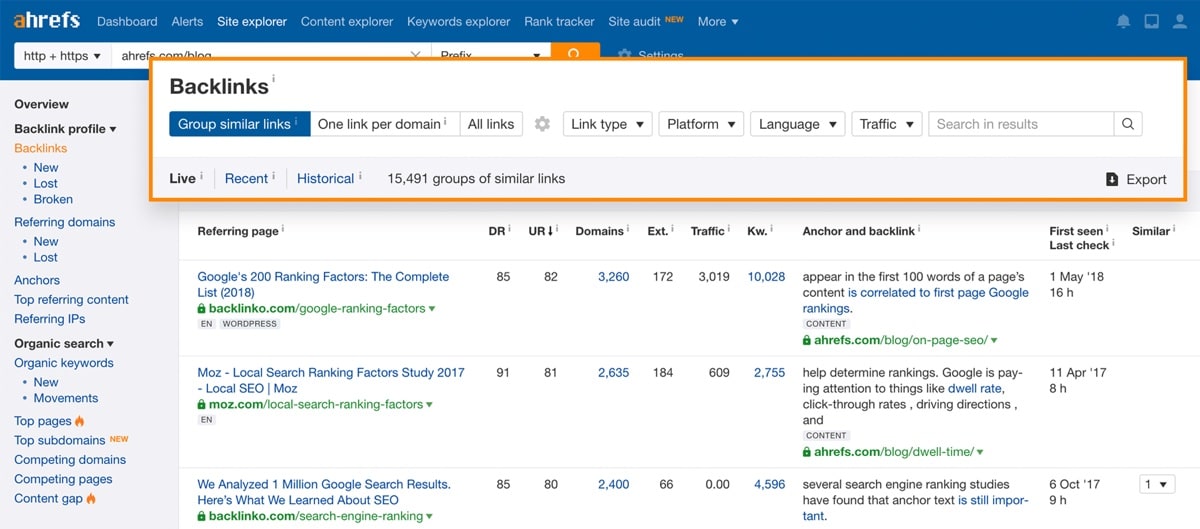
Further down the report is a list of the backlinks pointing to the site. For each link, you'll see the referring page, the Domain Rating and URL rating for the referring page, the anchor text of the backlink, and whether the link is dofollow or nofollow.
You can toggle the backlinks chart to instead show the top anchor texts used for links pointing to the target website or the top pages receiving links.
You are also able to search and analyze links for a specific URL instead of the domain as a whole.
The free checker shows a sample of the links rather than the whole profile, which is enough to size up a competitor but not to work through their backlinks one by one. For the full report you need a paid plan.
There is also a free Ahrefs account that gives you the complete data for your own site once you verify ownership of it, which is worth setting up even if you never pay for the tool.
Why Are Links Important in SEO?
Links are important in SEO because they are perceived as a 'vote of trust' from one website to another.
When a site links to another, Google takes it as a sign that the linking site finds the other site valuable and of high enough quality to make it worth linking to.
Google then takes these signals into account when ranking different pages in its index.

While links are important, not all links have the same level of value. There are certain factors that enable some links to have a much bigger impact on SEO than others.
Authority of the referring domain
Each website's authority can essentially be measured by a numerical value. Some SEO tools call this metric Domain Authority, others Domain Score or Domain Rating but the concept is the same.
The more authoritative a website is, the higher its score. This score plays a role in SEO as Google is more likely to rank a page from a more authoritative site.
It also plays an important factor in link building as links from authoritative sites are much better at improving SEO rankings than links from small non-authoritative sites.
When a website links to another website it passes on some of that authority to the site it is linking to. Naturally, getting links from sites with more authority are much more valuable because they are the ones that can lead to results.
Dofollow vs nofollow links
The inherent value of backlinks comes from their ability to pass Domain Authority and PageRank onto the target page.
Whether or not a link is able to pass this "link juice" on to the target site depends on if the link is a dofollow or nofollow link.
Nofollow links are backlinks that carry the rel="nofollow" attribute. Since March 2020 Google treats it as a hint rather than an instruction, which means it usually declines to pass PageRank through the link but reserves the right to count it.
Dofollow links are those that do not have the nofollow attribute applied.
You should not count on a nofollow link to lift your rankings, but they are still worth having. If you get an article published in a major publication like Forbes, the links will be nofollow but the links can still lead to referral traffic. It is also good for branding to have your businesses mentioned by an industry leader.
Anchor text
Anchor text is the user-facing text that is the visible and clickable part of a link.
It is important to SEO as it gives a signal to search engines and users about the page being linked to.
For example, the link what you need to know about anchor text makes it clear that the page being linked to is about anchor text.
Anchor text can tell Google what keywords a page should rank for, so links like the one above that contain target keywords can be helpful in boosting SEO rankings.
That said, it is important not to over-optimize the anchor text for links as Google may penalize your site.
You should only use anchor keywords that are actually relevant to the page. It is also good practice to have a backlink profile with a mixture of all types of anchor texts (branded, domain name, naked URL, partial match, generic, etc.)
This will make your link profile look natural and will keep you from being penalized.
How to Tell a Good Link From a Bad One
Once you have the list of sites linking to you, the next question is which of those links are actually doing anything. They are not all equal, and a small number can work against you.
Four things are worth checking on any link:
- Authority of the referring domain. Every tool scores this differently, Domain Rating in Ahrefs, Authority Score in Semrush, Domain Trust in SE Ranking, but they measure the same idea. A link from a site with real authority is worth more than a pile of links from sites with none.
- Whether the linking page has any traffic. A link on a page nobody visits and nothing else links to passes very little, whatever the domain score says.
- The anchor text. A natural profile has a mix of branded, naked URL, generic and partial match anchors. A run of exact keyword anchors pointing at the same page is the pattern Google associates with paid links.
- Relevance. A link from a site in your field is a stronger signal than one from a site with no connection to what you do.
Checking for toxic and spam backlinks
Some tools score this for you. SE Ranking's Backlink Checker attaches a toxicity score to every backlink and to the profile as a whole, so you can sort the list worst first instead of reading through it. Semrush has an equivalent in its Backlink Audit.
The links that tend to score badly are the ones that were never editorial in the first place:
- Links bought in bulk, or traded through link exchange schemes
- Private blog network links, where the same handful of sites link to everything
- Guest posts placed at scale with keyword-stuffed anchor text
- Sudden spikes of links from unrelated sites in languages you do not publish in
Ordinary forum posts, blog comments and directory listings usually sit in a different category. They are worth little, but they are normal and they are not a problem to be solved.
What to do about them
In most cases, nothing. Google has said repeatedly that it ignores the overwhelming majority of spam links automatically, and a profile with some junk in it is the normal state of any site that has been online for a while.
If a link is genuinely damaging and you can identify the owner, asking them to remove it or add a nofollow attribute is the cleanest fix, though replies are rare.
The last resort is the Google disavow tool, which lets you upload a list of links you want Google to disregard.
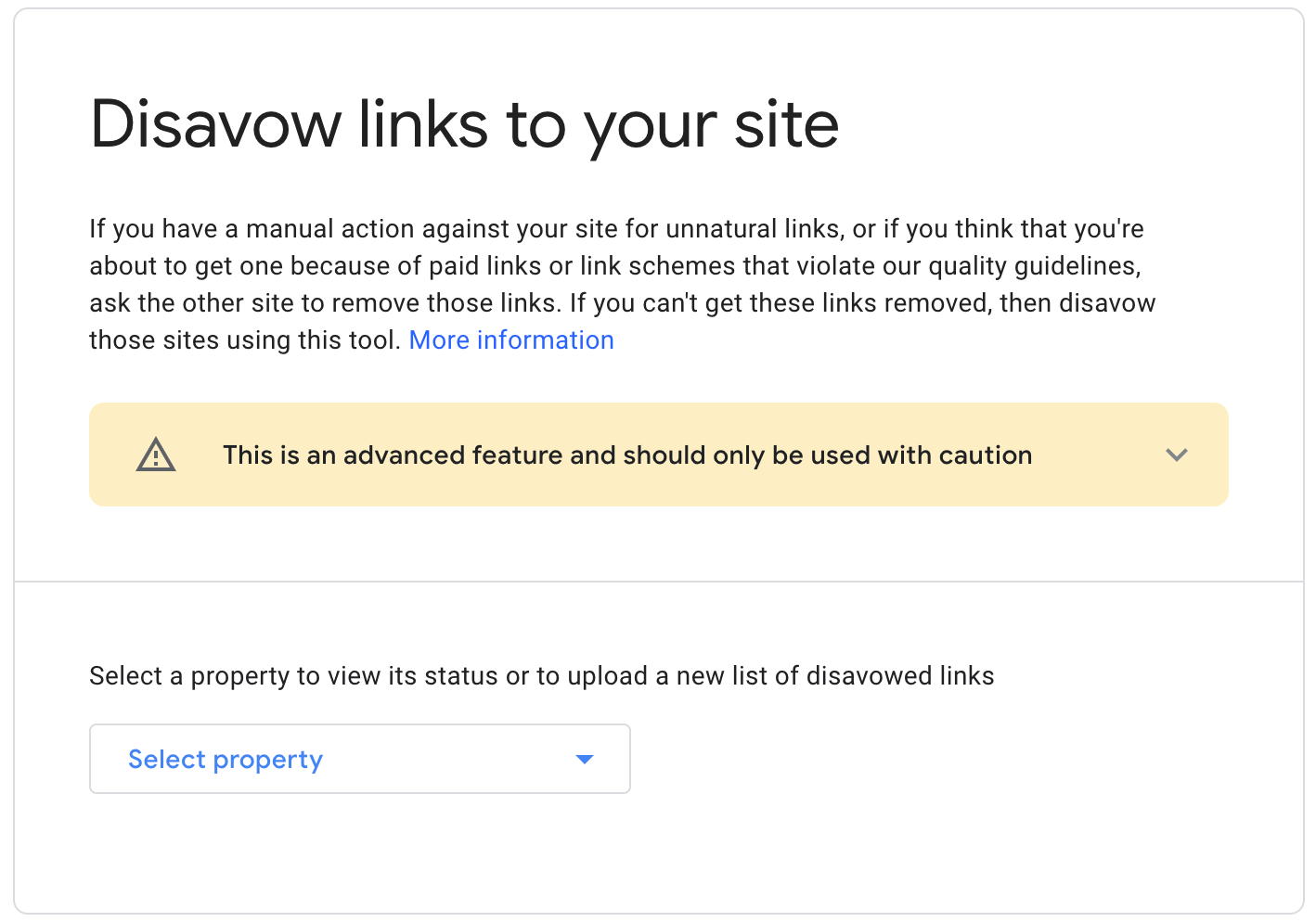
Use it carefully. Google's own guidance is that most sites never need it and that a disavow file built without good reason can do more harm than the links it targets, because you can cut off links that were helping you. Our guide to finding and cleaning up bad backlinks walks through the process if you decide you need it.
Key Learnings
Backlinks are an important part of Off-Page SEO because they act as a vote of confidence from one website to another. Google takes these votes of trust as a signal of value and quality and uses them when ranking pages.
Not all backlinks have the same effect on SEO. Links from websites with a high domain authority are more valuable than those from sites with low authority.
This is because some of a website's authority is passed on to the other site when linking to them. Links from low-authority sites simply don't do much in boosting the target page's authority.
In the same regard, links carrying a nofollow attribute are worth less, because Google reads it as a hint to leave that link out of its ranking calculations.
Google ignores most spam links on its own, so a few bad ones are not something to worry about. The links that need attention are the ones you paid for or built at scale, and a toxicity score is the quickest way to find them.
There are several free tools that can help you see the links to your site.
You can use the Links reports within your Google Search Console and Bing Webmaster Tools accounts to quickly see all the referring domains linking to your site, the specific URLs where the links are coming from, and which of your pages are being linked to.
For any site other than your own, the free checkers from Semrush, SE Ranking and Ahrefs will show you the referring domains, the anchor text and whether each link is dofollow, which is enough to see what kind of pages a competitor attracts links with.
Google itself will not answer the question. The link: operator was retired years ago and returns pages from the site you typed instead of pages linking to it, so a webmaster tool or a backlink checker is the only route.